What is Desktop Automation? Complete Guide

Learn what desktop automation is, how AI tools simplify repetitive tasks, and how automation improves daily workflows. With Kimi Work, you can schedule tasks, manage files, browse the web, and automate workflows effortlessly.

8 min read2026-07-22
Best desktop automation tool—Kimi Work

Desktop automation uses AI to complete tasks directly on your computer, reducing repetitive manual work across different applications. From organizing files and researching information to generating reports and managing workflows, AI-powered desktop automation helps improve productivity and efficiency. In this guide, you'll learn what desktop automation is, how it works, its key benefits and use cases, and how to automate desktop tasks with AI.

What is desktop automation?

Desktop automation is the use of software to perform repetitive tasks on a computer without constant human involvement. It can automate activities such as data entry, file handling, report creation, and application navigation. Following predefined workflows, it improves accuracy, saves time, and increases productivity. This allows employees to focus on more strategic and value-driven work.

How does desktop automation work?

Desktop automation enables software or AI to interact with applications much like a human user. Depending on the pre-set workflow, actions such as opening programs, navigating interfaces, entering data, transferring information between applications, and generating reports automatically are carried out using predefined rules or AI-powered decision-making to complete tasks accurately and efficiently.

Kimi Work: AI Desktop automation app for faster workflows

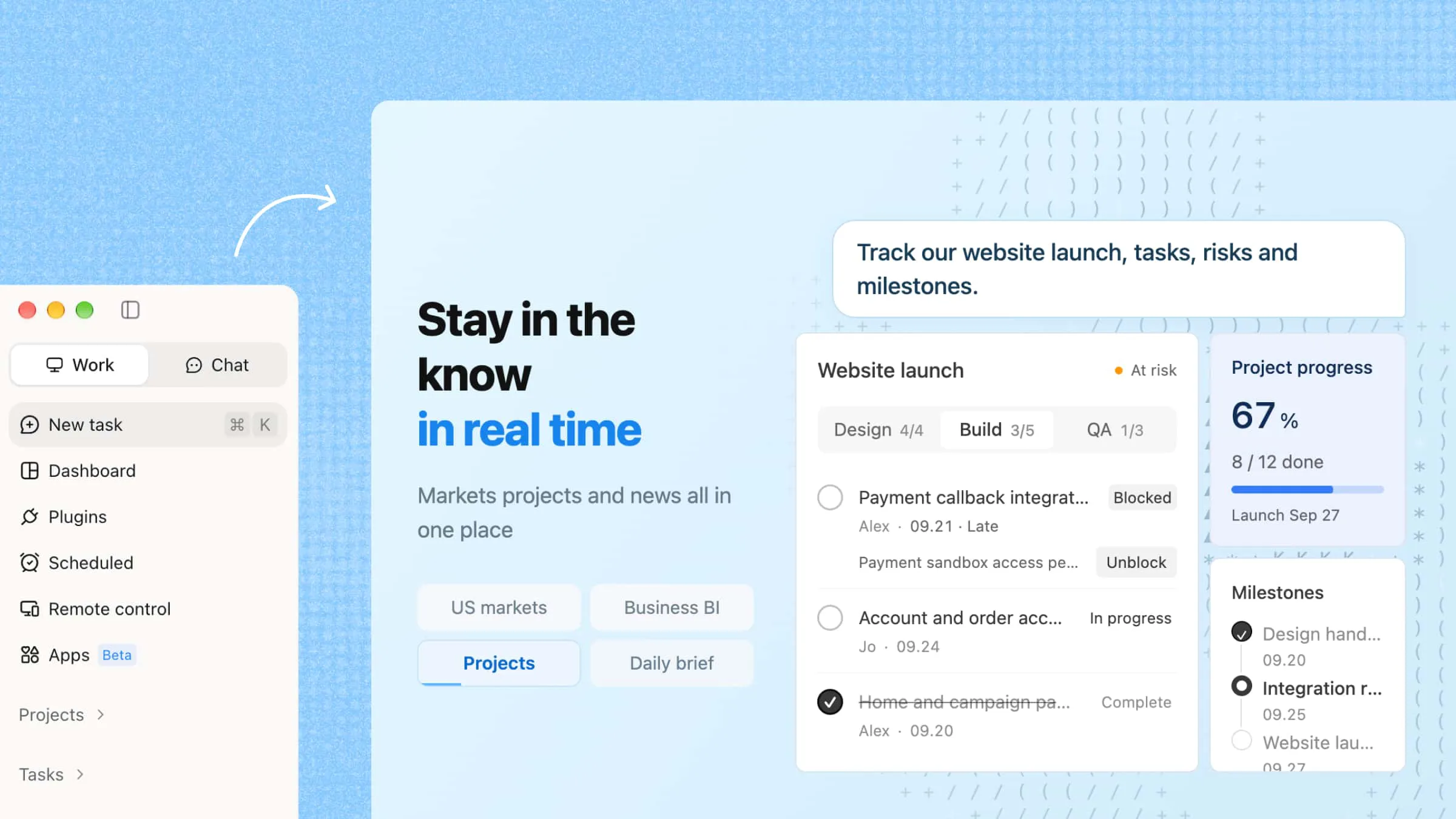
Kimi Work is an AI desktop automation app that transforms everyday computer operations into streamlined, AI-driven workflows that require less hands-on management. It can navigate multiple tools, organize information from various sources, and carry out actions based on user goals rather than rigid commands. The platform is designed to support knowledge-intensive work to help users move from planning to execution more quickly.

Main features of Kimi Work

To help users work more efficiently, Kimi Work provides several intelligent automation features that reduce manual effort and accelerate task completion. Some of the main features are listed below.

  • Scheduled automation tasks: Kimi Work can automatically trigger workflows at predefined times to help critical business processes run without delays. This is particularly useful for recurring tasks such as report generation, data synchronization, system updates, and routine monitoring activities.

  • WebBridge for autonomous browsing: Kimi WebBridge enables Kimi Work to independently navigate websites, interpret page content, and perform online actions. It can gather market information, monitor web-based resources, and complete browser-driven workflows that would otherwise require manual research.

  • Agent swarm for complex task execution: Rather than relying on a single AI agent, Kimi Agent swarm can deploy multiple specialized agents that work together on different parts of a workflow. This collaborative approach improves efficiency when handling research projects, large-scale data processing, and complex multi-step business operations.

  • Autonomous data access and retrieval: Kimi Work can retrieve information from various sources, including local files, cloud storage platforms, databases, and online repositories. It then analyzes the collected data and presents key findings in a structured format, making information easier to understand and use.

  • Extensible plugins for expanded capabilities: The plugin framework allows Kimi Work to integrate with third-party applications and enterprise systems. These integrations extend the platform's functionality, enabling users to access data, automate actions, and manage workflows across connected tools from a centralized environment.

  • Goal mode for continuous task execution: Goal Mode is designed for outcome-driven work rather than single-step automation. After receiving a target objective, Kimi Work can plan the required actions, adapt to new information, and continue progressing toward completion until the defined result is achieved.

Interface of Kimi Work

How to use Goal Mode in Kimi Work?

Using Goal Mode is simple. Just define the result you want to achieve. Kimi Work automatically plans the necessary steps, gathers relevant information, and manages the process until the objective is completed. It helps users focus on the outcome instead of overseeing every task manually.

Step 1: Download and install Kimi Work

Visit the Kimi Work website or click the link below to download the desktop application, and complete the installation process. Once installed, launch the application and sign in to your account to access Goal Mode.

Download Kimi Work

Step 2: Describe your goal and enable Goal Mode

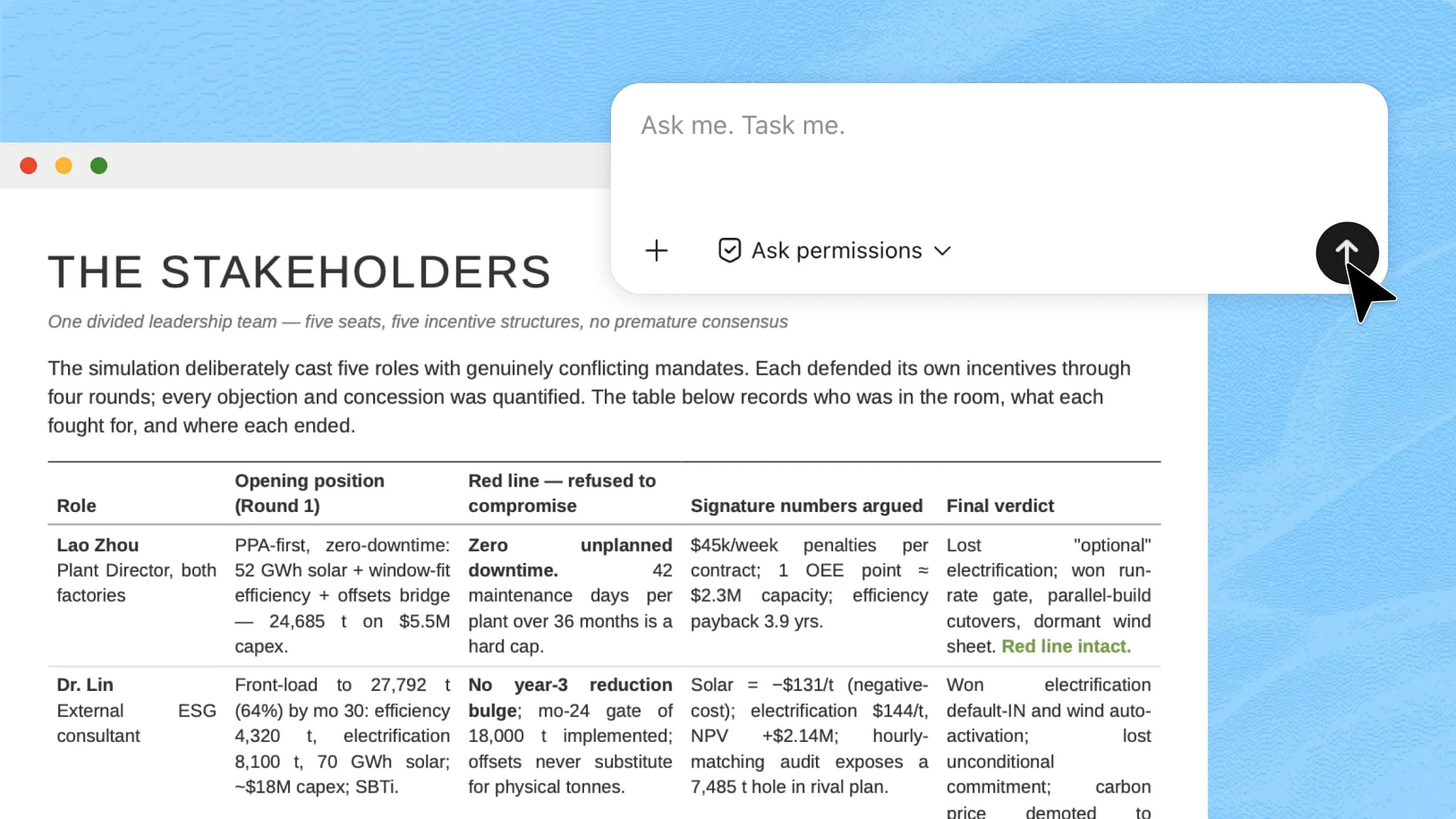
Open Kimi Work and describe the goal you want to accomplish. Add /goal to your prompt (recommended), so Kimi treats your request as a long-running task instead of a single conversation. Goal Mode is best for work that requires research, planning, iteration, or verification across multiple rounds.

If you don't need Goal Mode for simpler tasks, just tell Kimi your request without adding /goal.

Step 3: Provide your requirements

Include the information Kimi needs to complete the task successfully, such as your expected result, requirements, constraints, acceptance criteria, and any limits on time or resources.

Prompt template:

I want to accomplish a goal: [your goal]. Please use /goal mode to keep working on it until you produce an executable, deliverable result. Requirements: 1. Start by breaking the goal down for me. 2. Proactively ask me for any information you need. 3. Move forward step by step. 4. At the end of each round, give me the current progress and the next step. 5. Deliver a final, ready-to-use result. My background/constraints: [add your situation] Acceptance criteria: [what counts as done]

Example prompt:

/goal I want you to complete this goal: Create a market research report for AI note-taking tools. Keep working until you deliver a complete, ready-to-use report. Requirements: - Research the major AI note-taking products. - Compare their features, pricing, strengths, and weaknesses. - Identify current market trends and opportunities. - Organize the findings into a clear report with tables and recommendations. - Ask me for additional information if needed before continuing. - At the end of each round, summarize your progress and explain the next step. - Continue working until the report is complete. Success criteria: - Deliver a well-structured report with an executive summary, comparison table, key insights, and recommendations.

Step 3: Review progress and the final result

Once Goal Mode starts, Kimi plans and executes the task automatically across multiple rounds. It will ask follow-up questions when needed, report progress after each round, and continue working until the goal is completed, paused, or blocked. When all acceptance criteria are met, Kimi delivers the final ready-to-use result.

Use Goal Mode in Kimi Work

How to use Kimi Work to run tasks on the desktop?

Kimi Work can organize files, search for information, and complete multi-step tasks from your computer. Follow the steps below to set up a workflow and let AI handle the execution.

Step 1: Set up a workspace and assign a task

Open Kimi Work and create a new workspace for your task.

If you're working with multiple documents, choose "Work in a project" to keep related files together. Depending on your workflow, you can:

  • Start from scratch to create a new project.

  • Use the existing folder to connect to a folder that already contains your files.

  • Work without a folder if your task doesn't require local documents.

Once your workspace is ready, describe what you want Kimi Work to accomplish.

Example prompt:

Review the documents in this folder and identify the key information that new customer support employees should know. Then, locate and review any reference links included in the project documents to gather additional background information and industry best practices. Using both the project documents and the linked resources, create a comprehensive customer support onboarding guide. The guide should include: Project background and objectives Overview of the AI customer support workflow Roles and responsibilities of support agents Best practices for working with AI assistants Frequently asked questions A quick-start checklist for new team members Present the guide with clear headings, comparison tables where appropriate, and bullet points for easy reading.
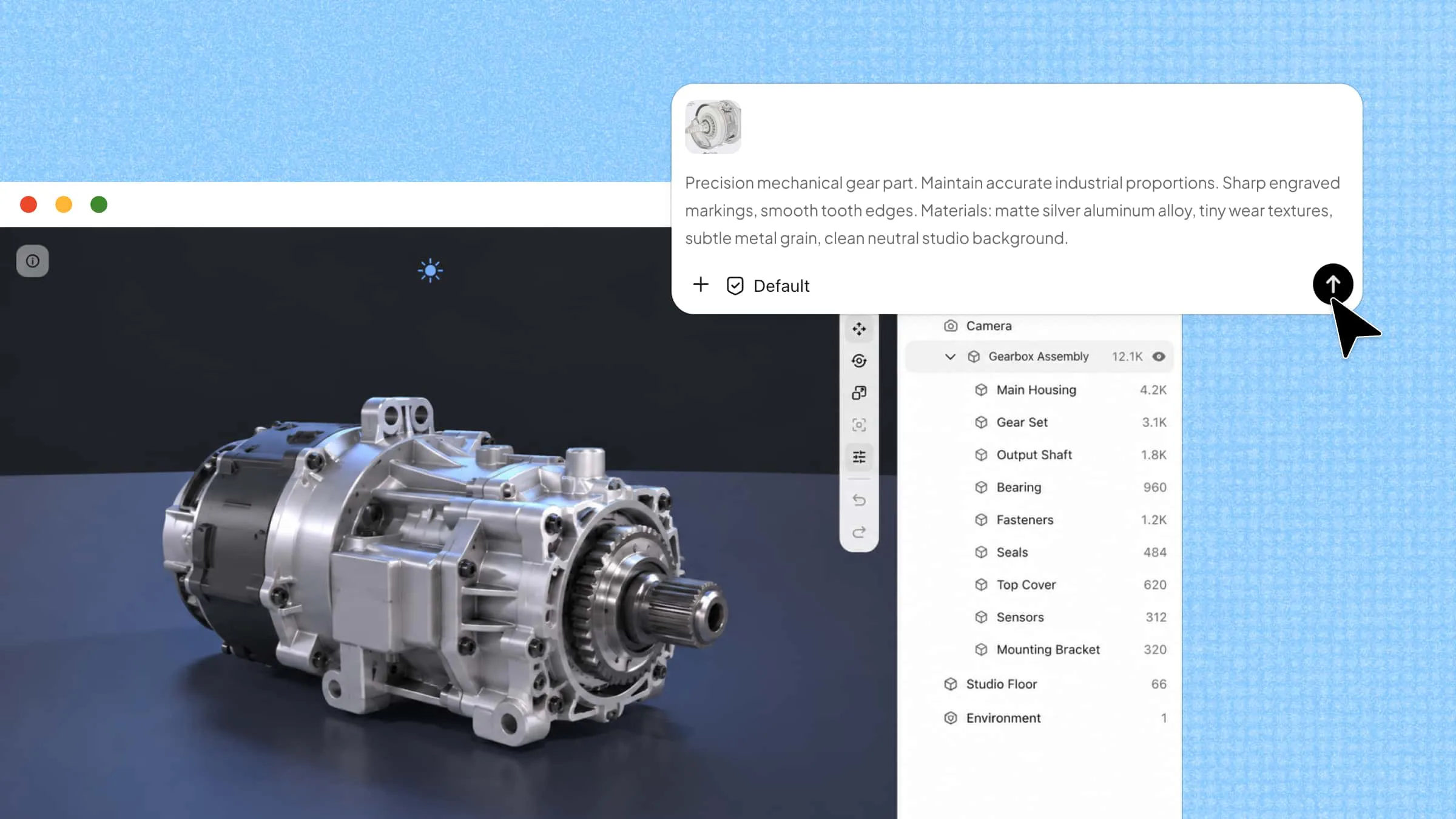
Creating a task by using Kimi Work

Step 2: Execute the workflow

Submit your instructions and let Kimi Work complete the task. It will review the documents, gather information from the web, organize the findings, and generate the requested content automatically.

Letting AI process and generate the results

Step 3: Review and export the results

Review the generated content and make any final adjustments if needed. When you're satisfied with the results, export them in the format that best fits your workflow, such as a document, presentation, spreadsheet, or knowledge base.

Checking your completed workflow

Who can use desktop automation tools?

The flexibility of PC automation makes it useful across many industries and job functions. Below are some of the professionals and teams that can benefit most from these productivity-enhancing tools.

  • Data analysts manage reports and datasets: Data analysts often spend hours collecting information from different platforms before analysis can begin. Desktop automation can aggregate data, standardize formats, refresh reports, and prepare dashboards automatically, significantly reducing the time required for data preparation

  • Finance professionals tracking market information: Finance teams frequently monitor multiple sources for market trends, financial statements, and investment data. Automation can continuously retrieve updates, organize information, and generate summaries to enable faster evaluations and more informed financial decisions.

  • Office teams managing repetitive operations: Many office processes involve moving information between applications, updating records, and handling large volumes of documents. Desktop automation streamlines these workflows by executing routine actions automatically to improve accuracy while maintaining operational consistency.

  • Developers and technical teams manage workflows: Software development often involves repetitive activities such as environmental setup, log monitoring, testing cycles, and deployment tasks. Desktop application automation testing tools help coordinate these processes efficiently, reducing manual workload and allowing teams to focus on solving technical challenges.

  • Business teams improving operational efficiency: Business teams can use desktop application automation tools to connect processes across departments, manage workflow dependencies, and accelerate task completion. By reducing process bottlenecks and administrative overhead, organizations can improve productivity and scale operations more effectively.

Conclusion

In short, desktop automation tools can transform complex, multi-step processes into streamlined workflows that operate with greater speed, consistency, and accuracy. As automation becomes increasingly intelligent and outcome-driven, adopting a platform like Kimi Work can help organizations accelerate execution, improve resource utilization, and unlock new opportunities for operational growth.

FAQ

Which automation tool is ideal for desktop applications?
The best desktop automation tool should do more than automate clicks and keystrokes. It should connect multiple applications, handle dynamic information, and execute complete workflows from start to finish. AI-powered solutions such as Kimi Work are designed to manage complex tasks to make them suitable for businesses that need both automation and intelligent decision-making capabilities.
What tasks can desktop automation tools automate?
Desktop automation tools can automate virtually any rule-based task performed on a computer. This includes processing invoices, updating CRM records, generating reports, extracting information from documents, transferring data between systems, and monitoring business operations. They are particularly valuable for workflows that involve high volumes of repetitive actions across multiple applications.
Can desktop automation run tasks automatically on a schedule?
Yes. Scheduled automation allows organizations to execute workflows at specific times without human involvement. For example, a tool can generate daily performance reports before work hours, synchronize business data overnight, or perform regular compliance checks automatically. This ensures important processes run consistently, even outside normal working hours.
Can desktop automation tools browse websites automatically?
Yes. Modern desktop automation platforms can interact with websites much like a human user by opening pages, searching for information, filling out forms, downloading files, and collecting data. This capability is widely used for market monitoring, competitor research, lead generation, price tracking, and other web-based business activities that require frequent updates.
You Might Also Like
AI Automation: How It Works, Examples & Benefits
2026-07-22
How to Organize Files and Folders with AI
2026-07-22
10 AI Assistant Apps to Boost Your Productivity
2026-07-22
10 AI Documentation Tools for Smarter Work and Automation
2026-07-22
10 AI Sales Assistants Transforming Sales Workflows
2026-07-22