Beyond Chat: The Power of Local AI assistants

Local AI assistants are reshaping knowledge work. By automating workflows, connecting local files, browsing the web, and coordinating multi-agent systems, Kimi Work turns ideas into structured outputs like reports, slides, and insights—faster and with less effort.

10 min read2026-07-07
Best local AI assistants—Kimi Work

Managing files, research, and daily tasks can quickly become overwhelming. Switching between tools and organizing information often takes more time than actual work. Local AI assistants can automate tasks, connect information, and turn ideas into useful outputs like reports, slides, and insights. Read on to discover how they are changing the way people work and get things done.

What is a local AI assistant?

A local AI assistant is a tool that runs on your own device and works directly with your files and data, helping you manage tasks, organize information, and automate parts of your workflow. Many local AI assistants can open documents, analyze data, and create reports, summaries, or presentations. This lets you work faster and keep more control over your information.

Kimi Work: From chat-based AI tools to AI work systems

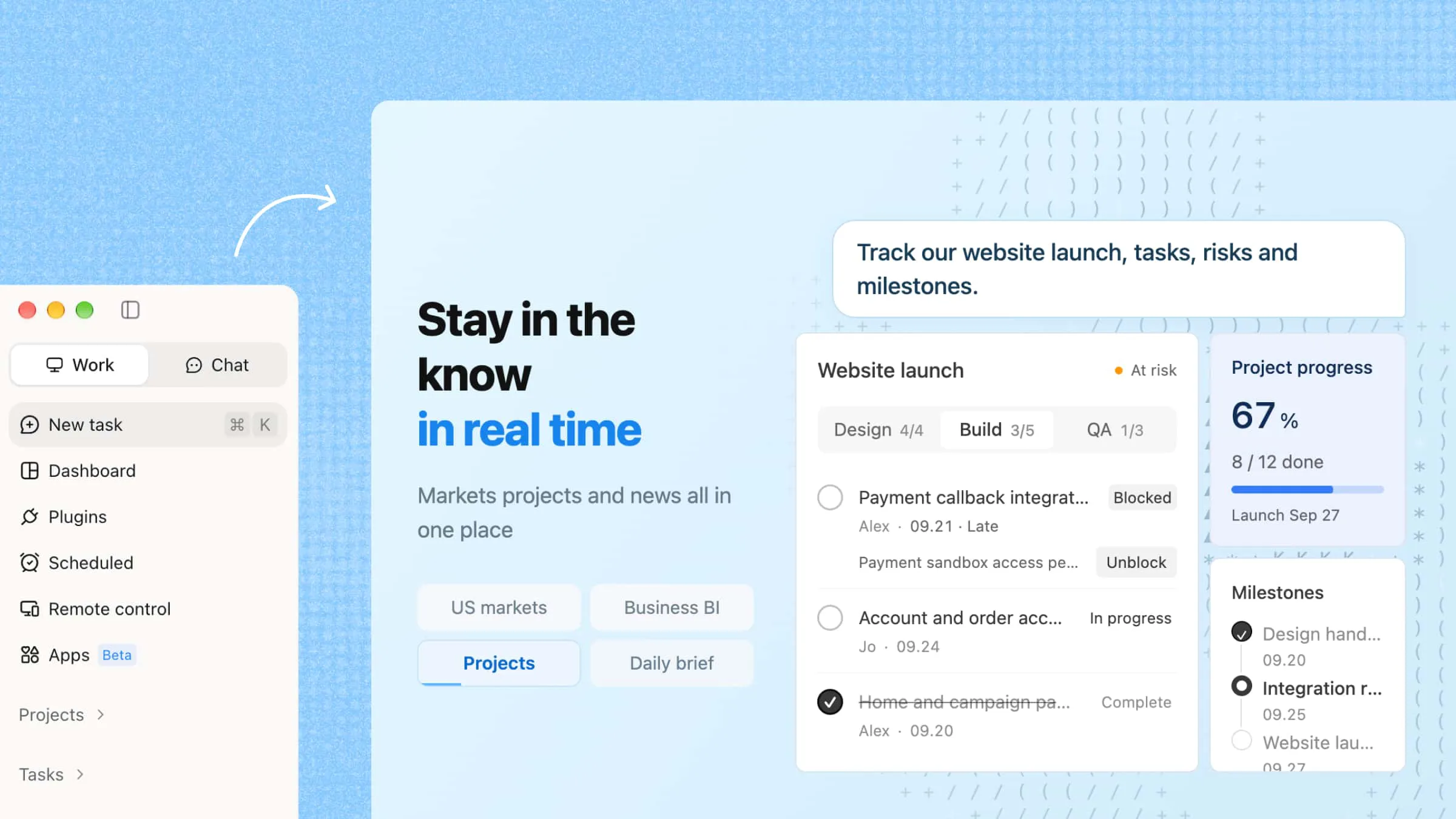
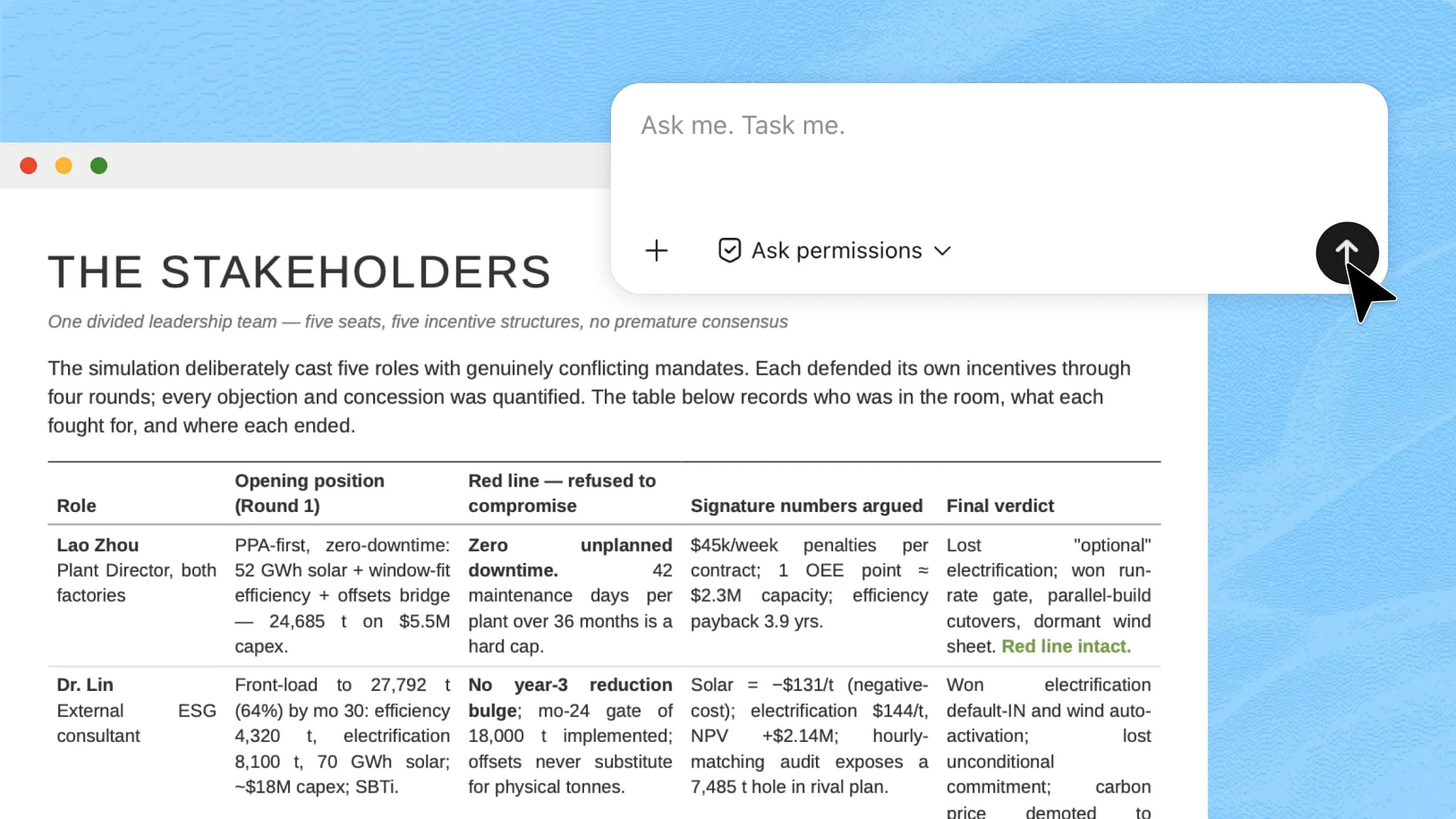
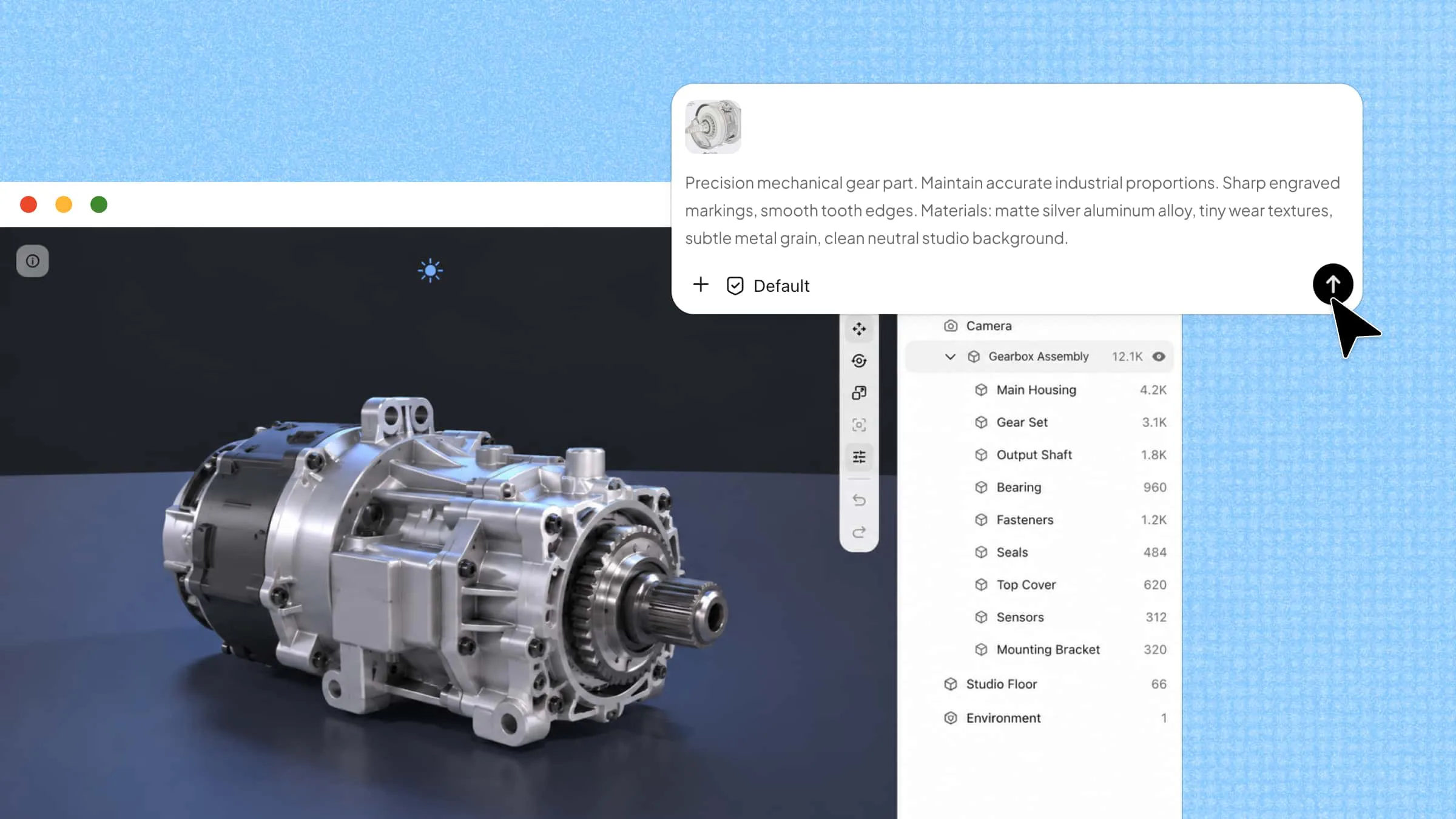
Kimi Work is a desktop AI assistant built for knowledge, work, and productivity. It connects with local files, automates repetitive tasks, browses the web independently, and runs workflows in the background. Using features like WebBridge and Agent Swarm, it can research information, analyze data, and turn insights into reports, presentations, and spreadsheets with minimal manual effort.

Interface of Kimi Work

Main features

  • Native access to local folders

Kimi Work can directly access and manage files stored in your local folders. Simply describe what you need, and it can organize messy files into folders, remove unnecessary files, rename documents, or update file content automatically. This makes file management faster and reduces the time spent on repetitive desktop tasks.

  • Automate recurring tasks effortlessly

Kimi Work lets you schedule tasks using a built-in Cron engine. You can set daily reports, data updates, or scripts, and the system runs them automatically in the background. This saves time because the work keeps running even without manual input.

  • WebBridge for autonomous browsing

WebBridge lets Kimi Work browse the web much like a person would. It can open websites, move between pages, gather information, and complete multi-step tasks by itself. Just set a goal, and it will handle browsing quickly and accurately.

  • Agent swarm for complex task execution

Multiple AI agents work together to solve difficult tasks in steps. Each agent focuses on a part of the problem, then combines results into one output. This makes it easy to turn complex research into slides, reports, or spreadsheets quickly.

  • Native access to global financial data

Kimi Work connects directly to stock market data from A-shares, Hong Kong, and the US. You can ask questions in simple language to get earnings, trends, and comparisons. No external APIs or setup is needed for financial analysis.

How to use Kimi Work?

Getting started with Kimi Work becomes easy once you see how it fits into daily tasks. It can handle one-time work, automate routines, and connect with other tools for better flow. Here's how you can use it in different ways.

Use Kimi Work to run tasks on the desktop

Kimi Work can handle more advanced workflows with ease. Large tasks are broken down and processed using multiple coordinated agents working in parallel. This approach helps transform raw information into clear outputs like slides, reports, or spreadsheets. Here's how you can use it to run tasks on the desktop.

Step 1: Open Kimi Work and enter your prompt

Launch Kimi Work and type a clear instruction for your task. You can include details like files, folders, and the type of output you want, such as reports or presentations.

Example prompt:

Analyze all images in "Marketing PNG," extract key insights, and generate a structured marketing report saved as "Market_Report.pptx" in the same folder.
Open Kimi Work and enter your prompt

Kimi Work automatically processes your request using multiple agents. It analyses the input, gathers insights, and builds the required output in the background.

Let AI process and generate results

Step 3: Check your completed workflow output

Once processing is complete, open the output folder or workspace to find your result. The final file, such as a report or presentation, will be ready to use.

Check your completed workflow output

Beyond just running tasks, Kimi Work helps automate your daily routines. You can set up scheduled tasks for things like reports, briefings, or data updates. Once set, these tasks run in the background without you needing to do anything else. Follow these steps to schedule tasks in Kimi Work.

Step 1: Open Kimi Work and use the scheduled tasks tool

Open Kimi Work on your desktop and head to the "Scheduled Tasks" section. Here, you can easily set up automation for any work you do regularly.

Open Kimi Work and use the scheduled tasks tool

Step 2: Describe your scheduled task

Describe the task you want Kimi Work to handle, like daily reports, briefings, or data updates. The system will understand your instructions and set up the task for you automatically.

Describe your scheduled task

Step 3: Check your completed workflow output

After the task runs, open the output folder or workspace to view results. Your reports or files will be ready without any manual effort.

Check your completed workflow output

Plugins let Kimi Work connect with additional tools and services, giving it access to more specialized capabilities. After installing a plugin, you can activate it whenever a task requires that integration.

Step 1: Open the plugin marketplace

Open Kimi Work and select "Plugins" from the navigation menu. Here you can view available integrations, manage installed plugins, and discover new ones.

Open the plugin marketplace

Step 2: Choose a plugin

Browse the available plugins or use the search box to find one that matches your workflow. Open the plugin page to review its description and supported features before installing.

Find the plugin you need

Step 3: Complete the installation

Click "Install" to add the plugin to your workspace. If the plugin requires permission to access an external service, follow the authorization steps to finish the connection.

Install and authorize the plugin

Step 4: Enable the plugin in a conversation

Start a new conversation and type / in the message box to display your installed plugins. Choose the appropriate plugin—for example, /GitHub—and then enter your prompt. Kimi Work will use the selected plugin to complete the requested task.

Note: Installing a plugin makes it available in Kimi Work, but it will not be used automatically in every conversation. Select or invoke a plugin only when its capabilities are needed.

Kimi Work can be used in many practical ways depending on your daily workflow. It is designed to support both simple tasks and complex work by combining automation, research, and integration in one system. From handling documents to managing data and connecting tools, it helps make work faster and more organized.

  • Financial analysis and market tracking

Kimi Work can help analyse financial reports, earnings data, and market updates from multiple sources. It turns raw financial information into structured insights, making it easier to track trends, compare companies, and support investment or business decisions.

  • Academic research and literature review

It can collect and summarise papers, articles, and reference materials from different sources. Kimi Work helps organise literature reviews, extract key findings, and synthesize insights, making academic research faster and more structured.

  • Data analysis and reporting

Kimi Work can process datasets, extract key patterns, and generate structured summaries or reports. It helps transform raw data into clear visual or written insights, improving decision-making for analysts and teams.

  • Report writing and document creation

It can turn ideas, notes, or research outputs into structured reports, presentations, or summaries. This makes it easier to produce professional documents for business, academic, or internal use in less time.

  • Working with local files and data

Kimi Work can access and process files stored locally. It analyses content, extracts key points, and organizes information, helping users manage offline data without switching between multiple tools.

  • Web research and competitive analysis

It browses the web to gather market, industry, or competitor information. Kimi Work compares sources and highlights insights, supporting better strategic decisions and deeper market understanding.

  • Automating repetitive workflows

Routine tasks such as reporting, updates, and data processing can be automated. Once configured, Kimi Work can execute them consistently without manual effort, improving efficiency and reliability.

  • Connecting different work tools

Kimi Work integrates with productivity and communication tools, helping centralize tasks and workflows. This creates a more connected system across apps used in daily professional work.

Benefits of using Kimi Work as a local AI assistant

Using local AI assistants changes how daily work is handled by reducing manual effort and bringing everything into one connected system. Instead of switching between different tools and repeating the same tasks, work becomes more organized and automated. These benefits show how Kimi Work improves productivity in practical ways.

  • Significant time savings on repetitive work

Routine tasks like collecting information, drafting reports, or updating files are handled automatically. This reduces the need for constant manual effort and saves a large amount of time each day. As a result, users can focus more on important and creative work instead of repetitive actions.

  • Less tool switching, more unified workflow

Research, analysis, files, and outputs are managed within a single system. This removes the hassle of moving between multiple apps for different tasks. The workflow becomes smoother, more focused, and easier to control in one place.

  • Faster production by combining web data and local files

A local AI assistant can work with both online information and stored files at the same time. It quickly gathers, compares, and organizes data from different sources. This helps in making faster and more accurate decisions without delays.

  • From raw input to multi-format, ready-to-use outputs

Raw data or simple inputs are turned into structured reports, slides, or spreadsheets. The formatting and organization are handled automatically, reducing extra editing work. This makes outputs ready to use almost immediately after generation.

Conclusion

Work is slowly shifting toward smarter systems that handle tasks in a more connected way. Instead of spending energy on routine steps, people can focus on thinking and decision-making. Tools like Kimi Work show how digital systems can simply support real work. With local AI assistants, daily workflows become more structured and less stressful. Try Kimi Work and see how it can change the way you work every day.

FAQ

What kind of tasks can Kimi Work handle?
Kimi Work can handle a wide range of tasks like report writing, data analysis, and research. It also automates repetitive work such as updates and scheduled reports. Users can process local files and generate structured outputs like slides or spreadsheets. It also supports web browsing and information gathering.
Who benefits most from using the local AI assistant?
Students, professionals, and researchers benefit the most from a local AI assistant. It helps anyone who deals with large amounts of information or repetitive tasks. Business users can save time on reporting and analysis work. It is also useful for teams managing workflows across multiple tools.
Do I need coding skills to use the local AI assistant?
No coding skills are required to use Kimi Work. Tasks are handled through simple prompts and easy setup steps. Users can describe what they want in natural language. The system manages automation and processing in the background.
You Might Also Like
10 Smart AI Software for PCs Worth Trying in 2026
2026-07-08
10 AI Agent Workspace Platforms for Modern AI Workflows
2026-07-07
AI Cowork: From Single Agents to Team Automation
2026-07-07
Kimi Work: A Powerful Local AI Agent for Desktop Automation
2026-07-07
Kimi Work: The Local AI Agent for Your Desktop
2026-06-17