Messy files and scattered folders can quickly slow down your workflow. Whether you're managing work documents, personal files, or shared projects, a clear folder structure makes it easier to find what you need, reduce clutter, and stay productive. In this guide, you'll learn practical tips for organizing files and folders, along with simple strategies to keep your digital workspace organized over time.
6 ways to organize digital files
Organizing digital files becomes much easier when you follow a clear system instead of storing everything randomly. Different methods can suit different work styles, depending on how often you access or manage your data. These approaches help create order and improve daily productivity in simple ways.
By date
Arrange files into folders based on when they were created, modified, or received. This method works well for time-sensitive content such as photos, videos, meeting notes, financial records, and deadlines, making it easy to browse files chronologically. It also helps track progress and review past work quickly when needed.
By project
Group files according to the project, client, or task they belong to. This keeps all related documents, assets, and resources together, making it easier to collaborate, track progress, and manage multiple projects at once. It also reduces confusion when handling different tasks.
By tags
Assign descriptive tags or keywords to files so they can be searched and filtered quickly. Instead of relying only on folder names, tags allow a file to belong to multiple categories, making them useful for research materials and shared documents. This improves search speed and access.
By file type
Separate files based on their format, such as documents, spreadsheets, images, videos, presentations, or audio files. This is ideal for users working with varied content who need to locate files by media type quickly. It also keeps similar formats grouped for better clarity.
With cloud storage
Store and organize files using cloud platforms that sync across devices. Along with access from anywhere, cloud storage supports collaboration, sharing, backups, and version control for personal and team use. It also protects data if devices fail or get lost.
With automatic file organization software
Use AI to sort, rename, categorize, and structure files based on content instead of manual effort. AI tools like Kimi Work can detect patterns and build logical folder systems for large file sets. This saves time and reduces daily organizational work significantly.
Organize your files effortlessly using AI: Kimi Work
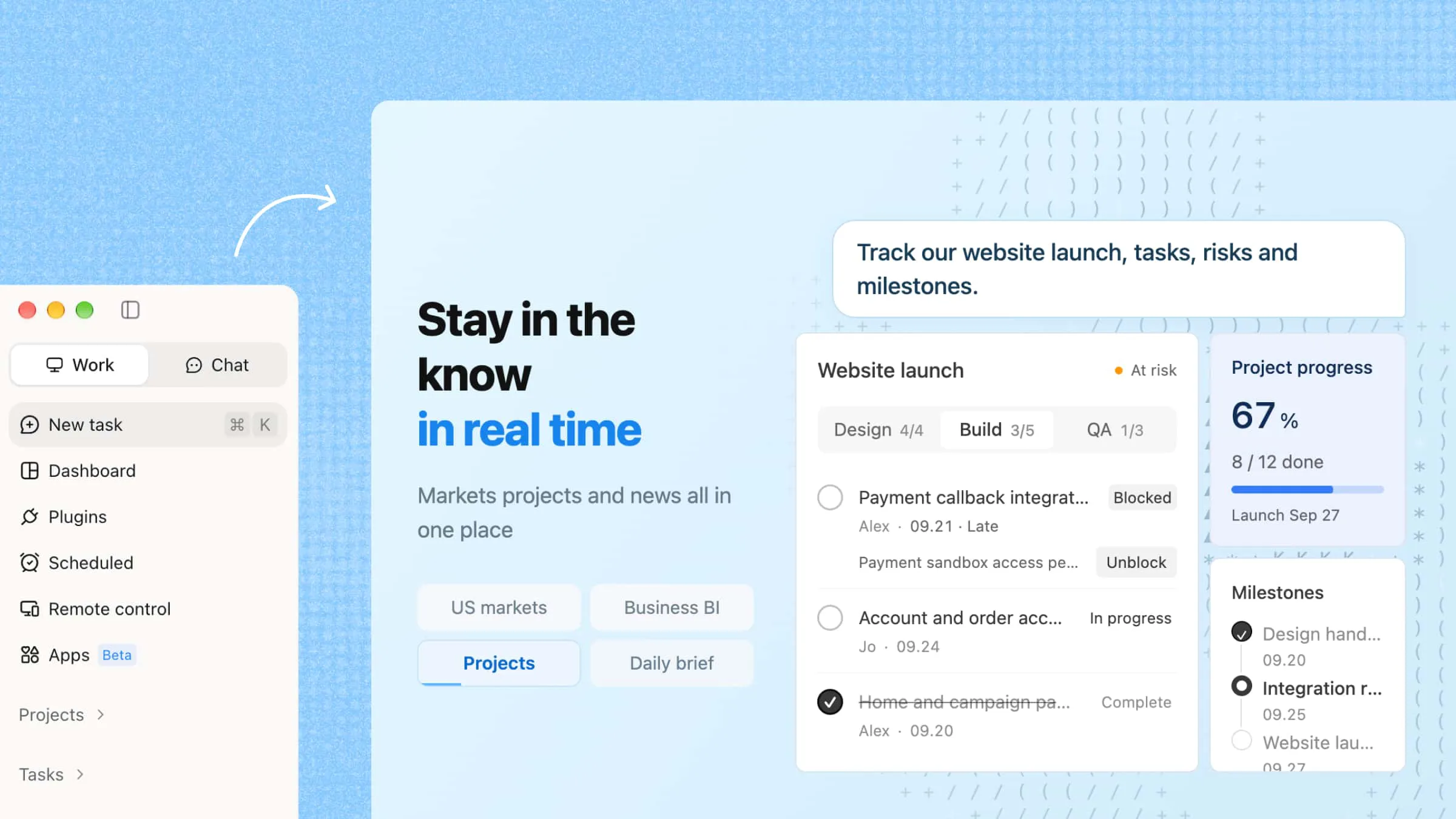
Kimi Work is an AI desktop agent designed for deep file and workflow management. It connects directly with your local files, handles tasks in the background, and can even automate searches, summaries, and organization without constant user input. With tools like Kimi Work, file organization becomes more intelligent and continuous instead of manual and time-consuming.
Main features
One-click local file organization: Connecting directly with your local files, it can automatically sort and organize files in local folders into a clear folder structure with a single command. It quickly scans your system and places files into proper categories without manual effort.
Scheduled file organization: Create recurring tasks to automatically organize specific folders or remove unnecessary files on a schedule. It runs in the background at set times, so your system stays tidy without regular checking.
Natural-language file search: Find files by describing their contents rather than remembering filenames. You can simply type what the file is about, and the system locates it instantly. This makes searching faster and more intuitive.
Bulk document processing: Organize, summarize, and process hundreds of files in one workflow. It handles large batches of documents together, saving time and reducing manual work. This is useful for reports, research files, and business data that need quick sorting.
How to organize files on a computer with Kimi Work?
Organizing files on a computer becomes much easier when AI handles heavy work in the background. Kimi Work simplifies this process by turning a few simple actions into a complete automated workflow. Here's how you can get started with it.
Step 1: Connect your local folder
Open Kimi Work and mount the local folder you want to organize. Once connected, the tool can securely access your files and understand their structure without needing uploads. This allows direct work on your computer files, making the process faster and smoother from the start.
Step 2: Describe how you want your files organized
Enter a simple natural language prompt explaining how you want your files arranged. You can sort by project, file type, date, or client depending on your needs.
Example prompt:
Step 3: Review the AI-generated organization plan
Kimi Work first analyzes all files and builds a suggested folder structure before making any changes. You can review this plan and check if it matches your workflow needs. Once approved, it automatically organizes everything, moves files into correct folders, and saves the updated structure directly on your computer.
Common reasons why organized files go missing
Even when files are carefully sorted, they can still become hard to find or disappear due to small mistakes or technical issues. A system may look organized on the surface, but weak handling or unexpected errors can break the structure. Understanding these reasons helps in keeping digital data safer and more reliable.
Inconsistent file management
Files often go missing when there is no fixed method for saving or updating them. Different saving styles or random folder use can create confusion over time. This makes important documents harder to trace when needed, especially during busy work schedules and deadlines.
Accidental deletion or overwriting
Simple mistakes like pressing delete or saving a new version over an old one can cause file loss. These errors usually happen during quick work or multitasking. Once overwritten or deleted, recovering the original file can be difficult without backup tools or recovery software.
Disorganized storage hierarchy
Files become hard to locate when folders and subfolders are not arranged in a clear structure. Without a proper hierarchy, documents get mixed and scattered. This leads to wasted time and frequent searching across multiple locations and drives.
Software failures or data corruption
System crashes, malware, or hardware issues can damage or erase stored files. Even well-organized data can be affected by these technical problems. In such cases, files may become inaccessible or completely lost, requiring repair or recovery attempts.
Expert practices for organizing digital files
Strong file management habits make it easier to keep digital spaces clean and usable over time. Small routines prevent clutter and help maintain control over documents across devices. These practices help you organize files on the desktop naturally and efficiently.
Use clear and consistent folder names
Clear names make it easy to understand what a folder contains without opening it. Consistency avoids confusion between different naming styles across projects. This improves overall structure and helps organize computer files in a simple, faster, and more reliable way every day.
Sort files by date or project
Grouping files by time or work type keeps related documents together. It becomes easier to track progress and find older versions quickly. This method works well to organize your files for both personal tasks and long-term professional workflow management.
Delete duplicate files regularly
Removing duplicate files frees up storage and avoids confusion between similar versions. Extra copies often lead to mistakes during editing or sharing. Regular cleanup keeps file systems efficient, especially when you organize files on desktop environments with large data sets.
Create a logical folder hierarchy system
A structured hierarchy divides main folders into smaller, meaningful sections. This prevents confusion as file numbers grow over time. It also improves navigation when you organize files on Mac or manage complex project-based file systems.
Use descriptive file names always
Descriptive names clearly explain file content without opening them. This saves time during searches and improves accuracy. It supports a better workflow when you organize computer files across work, study, and personal digital storage needs.
Back up files to cloud storage
Cloud storage protects data from loss due to system issues or accidental deletion. It also enables access from different devices at any time. This adds security and flexibility when you organize files across multiple platforms and devices daily.
Review and clean folders every month
Regular cleanup removes outdated or unnecessary files from the system. It keeps storage light and improves overall performance. This habit helps maintain order when you organize files on your desktop and ensures long-term digital organization stability.
Conclusion
Knowing how to organize files on Mac and desktop helps create a smoother and more focused digital workspace. A simple system saves time, reduces confusion, and makes daily tasks easier to manage without unnecessary stress. Instead of struggling with scattered folders, a more organized setup makes work feel lighter and more controlled. Try Kimi Work to experience faster, AI-driven file organization that handles the heavy work for you.