Kimi 浏览器扩展产品介绍
Kimi 浏览器扩展(原 Kimi WebBridge)是面向 AI Agent 的浏览器插件,可打开网页、点击按钮、填写表单和提取信息,由 Agent 像人一样自动完成繁琐网页操作。你还可以把常用网页拆解成 CLI、录制网页操作变成 Skill,让 Agent 随时复用这些能力。
产品入口
Kimi 浏览器扩展有两种用法:
- 浏览器侧边栏:点击工具栏的 Kimi 图标打开侧边栏,登录 Kimi 账号即可直接对话,让 Kimi 帮你操作当前网页。
- 本地 Agent 远程控制:让 Kimi Work、Claude Code 等 AI 助手远程驱动扩展,自动完成网页任务。
| 项目 | 系统要求 |
|---|---|
| 操作系统 | macOS 或 Windows |
| 浏览器 | Chrome 或 Edge |
| 网络 | 需要稳定的网络连接 |
| 配套应用 | Kimi Work 或其他 Local Agent |
下载安装
Step 1: 下载 Kimi 浏览器扩展
你可以通过以下方式下载:
方式一:应用商店安装
- Chrome 用户:前往 Chrome Web Store
- Edge 用户:前往 Edge Add-ons
方式二:手动安装
如果你暂时无法访问浏览器应用商店,可以使用手动安装方式:
- 前往 Kimi 浏览器扩展官网 下载插件安装包,并解压下载好的文件
- 在浏览器地址栏输入扩展管理页地址(Chrome:
chrome://extensions/;Edge:edge://extensions/) - 打开「开发者模式」(Chrome 在页面右上角,Edge 在页面左下角)
- 点击「加载已解压的扩展程序」
- 在文件选择窗口中,选中解压后的 WebBridge 文件夹
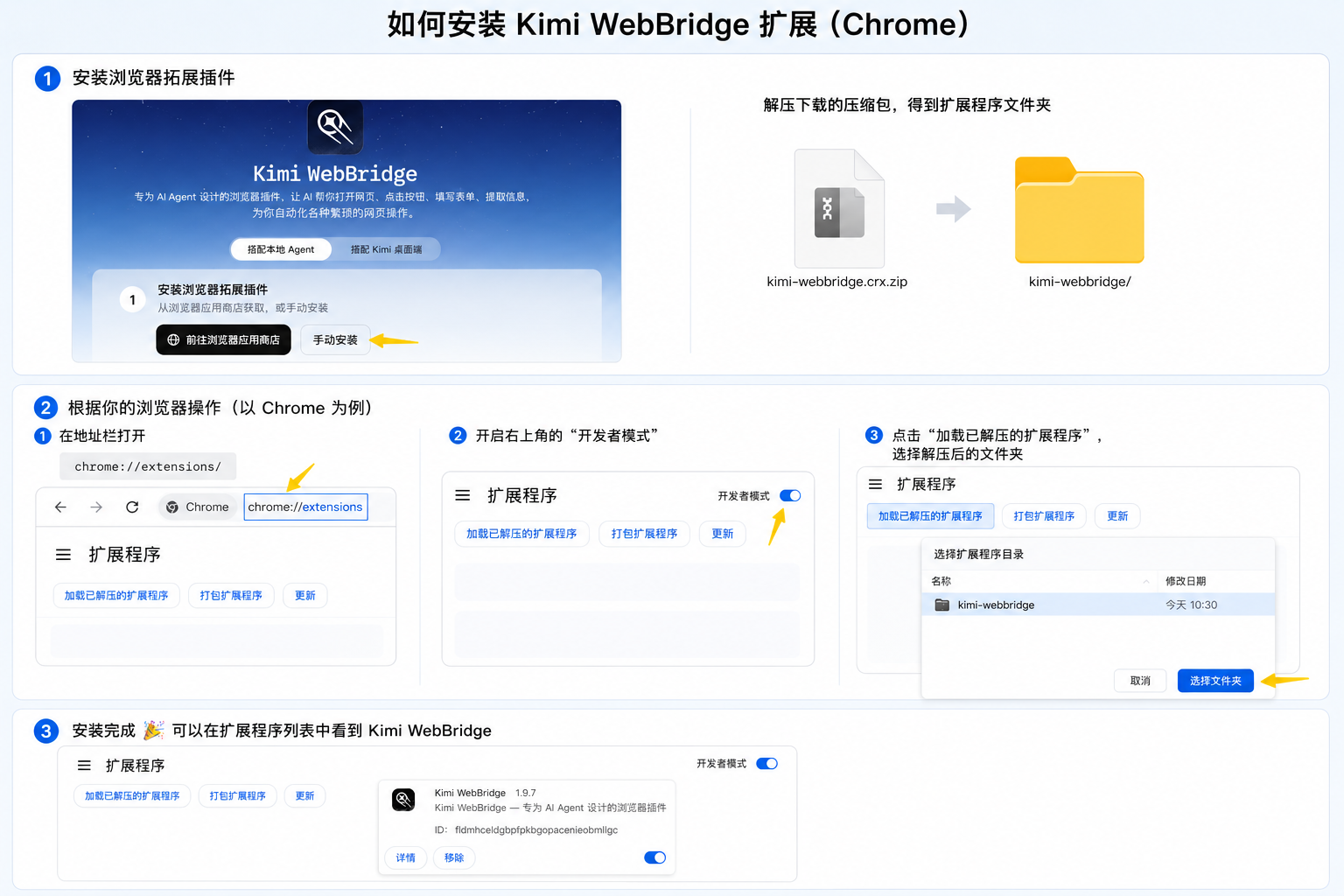
安装完成后,你会在浏览器扩展列表中看到 Kimi 浏览器扩展。为了后续使用更方便,建议将它固定到浏览器工具栏。
Step 2: 选择使用方式并完成配置
方式一:搭配 Kimi Work Desktop
-
通过官网下载 Kimi Work
-
打开下载的 Kimi Work 桌面端,切换到 Work 模式。在插件市场里找到并安装 Kimi 浏览器扩展插件。可以在浏览器侧边栏,或 Kimi Work 中尝试发送下方指令:
Text
方式二:搭配 Local Agent
支持 Claude Code、Codex、Cursor、Kimi Code、Hermes Claw 等。
- 在 Agent 中直接发送以下指令,即可自动完成 Kimi 浏览器扩展安装。Agent 会根据你的操作系统自动执行对应的安装流程。
如果你是 macOS 用户,请使用以下命令:
Bash
如果你是 Windows 用户,请使用以下命令:
Powershell
- 开始使用
插件连接成功后即可发送指令,例如:
Text
本文是否对你有帮助