Task Execution and Review
Choose an execution mode to suit the task's size, handle approvals and watch progress while it runs, and manage background work. When the task finishes, a typical review follows this order: run checks → verify in the browser → report problems.
Task modes
A task in the desktop app can run directly, or start with a reviewable plan that the Agent proposes and you confirm before execution—either way, you stay in control of the pace until the task is done and the result is delivered. Before starting a task, choose a suitable task mode from the + button in the lower-left corner of the Composer:
- Normal task: Use for well-scoped changes that are easy to verify.
- Plan: Use when the impact is uncertain and you want to confirm the approach first. Once enabled, the Agent analyzes the task and proposes an execution plan, then waits for you to approve, reject, or request changes before touching any files. You can also type
/planin the Composer to enter. - Goal: Use for a longer objective that needs multiple turns and checks. Once enabled, the goal appears above the Composer and the Agent keeps working toward it; you can pause, resume, or cancel it at any time. State the completion and stop conditions clearly, and avoid broad objectives like "find all the bugs". You can also type
/goalfollowed by the objective in the Composer. - Swarm: Use for investigation or modification work that can be split into multiple independent subtasks of the same kind. The Agent dispatches multiple subagents to work in parallel, and progress appears in the Agent / Subagent area.
- Tower (experimental): automatically breaks down large objectives and hands them to a team of agents: each Subagent works in parallel in its own isolated worktree as needed, and changes are reviewed before being merged back into the base branch.
Before starting, you can provide context to help the Agent understand the task.
Approvals and permissions
Desktop shows operations that need your decision in approval cards. A card can contain a command, file changes, or a plan. Review the exact scope before approving or rejecting it. When the Agent asks a question, the question card can offer single-choice, multiple-choice, and Other input.
Permission modes
There are three permission modes:
- Always Ask: only reads happen automatically; every other operation asks for your confirmation.
- Ask When Needed: routine edits and commands complete automatically; high-risk operations, questions, and plans still ask you.
- Never Ask: operations run automatically within the current permission scope without asking for confirmation one by one.
For a first session or an unfamiliar project, start with Always Ask and adjust the mode after you understand the operation scope. The current permission mode is shown in the lower-left corner of the Composer and can be switched there at any time.
Approving, rejecting, and modifying a plan in Plan mode counts as plan confirmation—see Task modes for the exact behavior.
Background tasks and subagents
The desktop app supports running background tasks while the main session continues. The work bar above the Composer shows the background work you can manage, where you can:
- View the status, output, and runtime of background Bash and tool tasks;
- View the model, reasoning effort, status, and result of background agents;
- Open the details of a specific task or subagent;
- Stop a running task.
The Agent / Subagent view in the right panel also shows the status and output of the current Agent or subagent.
Background tasks and background agents are two different kinds of work: the former tracks command and tool execution, while the latter tracks the independent work of subagents.
File Preview
Click a file path in a conversation to open File Preview in the right panel (the File tab type). It supports PDFs, images, Markdown, JSON, HTML, CSV, and other file formats.
- In the preview you can Copy the content, Copy path, Download the file, Reveal it in the system file manager, or Open it in an external app. More entries are available under More actions.
- Markdown files can be viewed as Preview or Source; Markdown files with frontmatter show a Metadata card.
- Images can be viewed fit to the panel or at actual size.
Built-in terminal
The bottom terminal panel is the desktop app's native terminal: you can run any command there just as in the system terminal—for example, run the project, install dependencies, execute scripts, or use Git. The terminal runs commands in the current workspace directory by default; confirm the directory matches the project before running commands.
Open and manage
Open the bottom terminal panel with the Open Terminal button in the upper-right corner of the session, press Ctrl + `, or choose View → Toggle Terminal in the app menu to show or hide it. The terminal supports multiple tabs: click New terminal in the toolbar to add one, click a tab to switch, and use Close terminal or Restart terminal when needed; closing a tab that still has running programs asks for confirmation.
Common uses
One of the most common uses is running the project's check commands to verify changes:
- Choose the existing test, build, or formatting commands from the project documentation, or ask the Agent to find the project's verification instructions first.
- Run the checks yourself in the bottom terminal panel, or ask the Agent to run them and report the results: when you run them, the output stays in the terminal panel; when the Agent runs them, the command and its output appear in the conversation as part of the execution process.
- Check whether the command output passes. If it fails, keep the error messages, ask the Agent to fix the problem, and rerun the checks; checks that could not run should come with an explanation.
You can ask the Agent directly:
Find this project's existing test and build commands and run the checks relevant to these changes. Report the commands, whether they passed or failed, and any checks you could not run and why.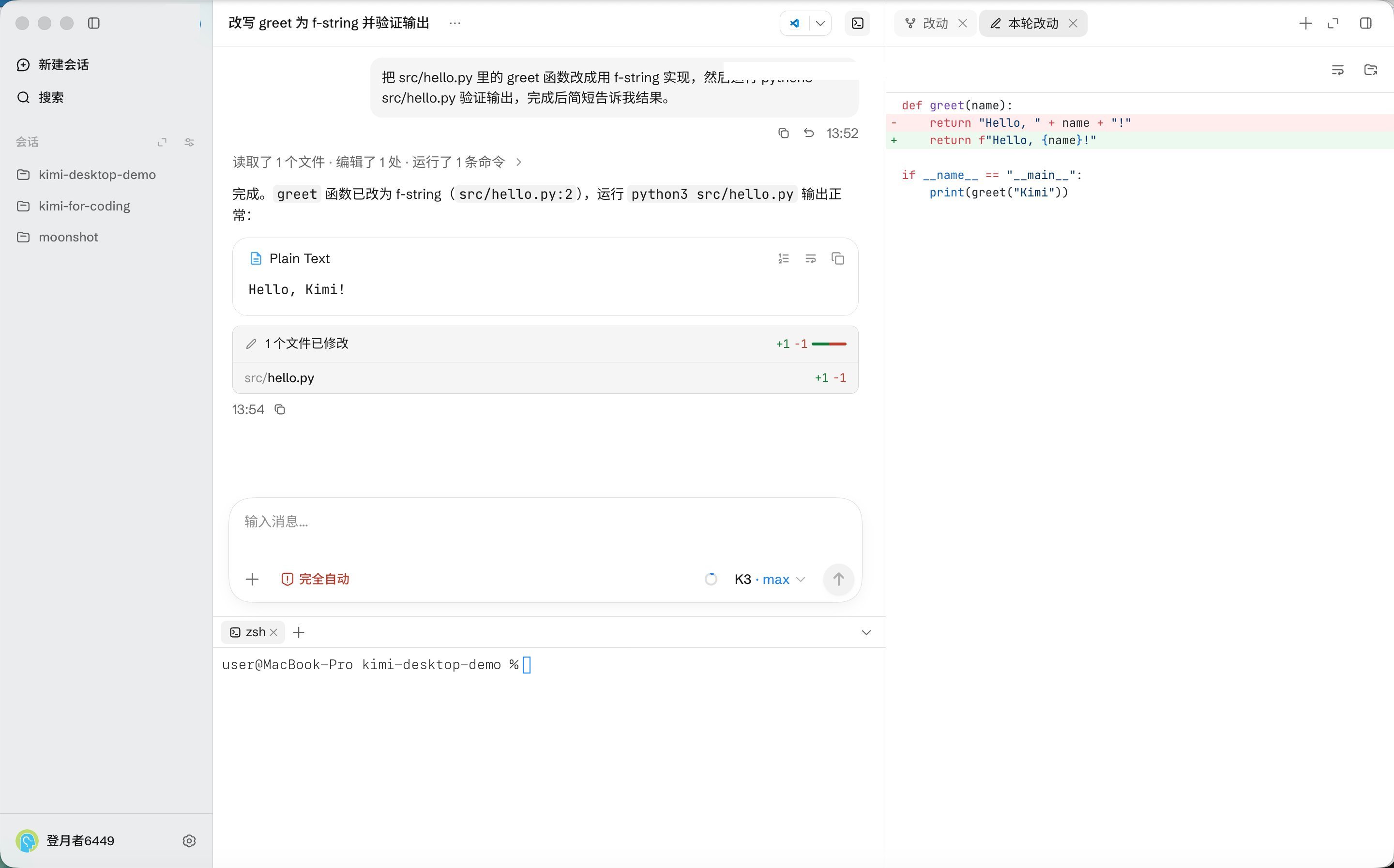
For interactive checks on web projects, see Built-in Browser.
Open in external apps
- Current workspace: use the external-apps entry in the top bar—click the editor icon to open directly in that app, or choose from the Select app menu. Available targets include editors installed on your machine (such as VS Code and Cursor), the system terminal, and the system file manager (Finder or File Explorer); the menu reflects the apps installed locally. You can also copy the current path.
- Current preview file: use the file actions in File Preview—Open opens the file in the default app, Reveal locates it in the system file manager, and Copy path copies the file path; more entries are available under More actions.
Report problems and re-verify
Whether a problem comes from a terminal check or the browser, you can report it in the same session. Include the location, reproduction steps, actual result, and expected result, along with relevant errors or annotations.
For example, after finding a form issue:
On the registration page, the form submits even when the email field is empty. It should show “Enter your email” and prevent submission. Fix the issue, rerun the relevant checks, and test both cases in the browser: an empty email field and a valid email address.After the Agent fixes the issue, repeat the relevant checks to confirm the problem is resolved.