Remote Control
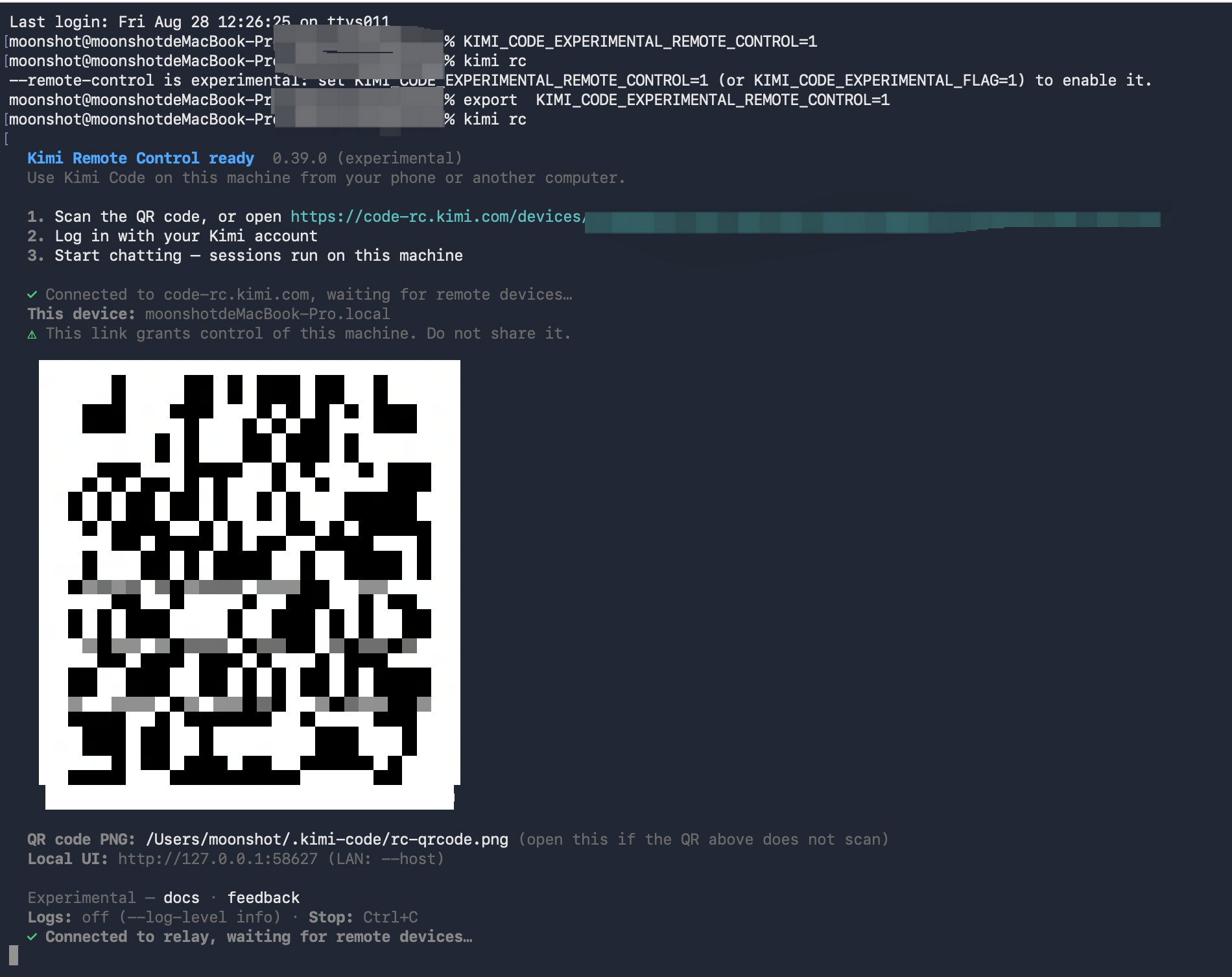
Start Kimi Code CLI with remote control enabled by running kimi rc in a terminal — it generates a link that can remotely control this machine. Scan the QR code with your phone to open the link, or visit it directly on another device. After opening the link, log in with the same Kimi account as in your local Kimi Code CLI to check on task progress, handle approvals, continue conversations, or start new sessions. Tasks always run on your machine — the web page is just a remote window.
Getting started
Prerequisites
Before turning on Remote Control, make sure your machine meets the following conditions:
- Kimi Code CLI installed: see Getting started
- Logged in to your Kimi account with a paid membership: Remote Control requires a paid membership and is not available to free users
- Machine stays awake and online: Remote Control depends on a persistent connection between your machine and the Kimi service; remote sessions are unavailable after shutdown, sleep, or network loss
Step 1: Start Remote Control
Start it on your machine in any of the following ways — they are equivalent: each starts a foreground process and prints the remote access info.
kimi rc(aliaskimi remote): start Remote Control directlykimi web --remote-control: equivalent tokimi rc— starts the local web interface and exposes it to the public internet at the same time/remote-control(alias/rc): use while already in a CLI session to hand the current session over to the remote interface
Once started, the terminal prints the access URL (like https://code-rc.kimi.com/devices/<device ID>/ for a mainland-cn login, or https://code-rc.kimi.ai/devices/<device ID>/ after kimi login --region global), a QR code, and the device name (the machine's hostname), and the default browser opens the URL automatically (use --no-open to skip). Besides the terminal rendering, the QR code is also saved as a PNG file (the path is printed in the startup output) — if the QR code doesn't render properly in your terminal, open that file instead.
Note
The Remote Control link is a remote control entry point to this machine — anyone who has it may control your sessions and files. Do not share it with others or post it anywhere public.
Two limitations:
- Only one Remote Control instance can run per machine. Starting it again reports the existing instance and prints the link already in use — see How to turn off Remote Control for how to stop the old one
- Remote Control cannot be combined with
--dangerous-bypass-auth, and it only binds to the loopback address (--hostLAN sharing is not supported — remote access goes through the Kimi relay service)
Step 2: Connect from another device
- Open the access URL from the startup output in a browser on your phone or another computer — on a phone, you can also scan the QR code in the terminal directly.
- Log in with the same Kimi account as on the machine.
- After logging in, pick this machine in the device list (shown by its hostname) to see its sessions and start working.
Remote Control works in the browser.
Device limit
Each account currently supports up to about 3 devices.
How to turn off Remote Control
Remote Control is a foreground process; how you stop it depends on whether you can find the terminal that started it:
- The terminal is still there: press
Ctrl+Cin that terminal (or just close the window) — the device immediately goes offline from the remote list - Can't find the terminal: the single-instance lock file
~/.kimi-code/server/rc.jsonrecords the process pid and the link in use (the error from starting a second instance prints both as well) — runkill <pid> - The process already died (power loss, crash, …): the stale lock file is cleaned up automatically on the next start — nothing to delete by hand
To start a fresh instance, stop the old one in any of the ways above and run kimi rc again — there is no dedicated restart command. The device ID is derived from the machine's data directory, so the device and its access URL stay the same. The web-side device management and revocation UI is subject to the final release.
What you can do in a remote session
Remote sessions have essentially the same capabilities as local ones:
- Send new tasks: describe what you need; the task runs on your machine
- Watch progress: execution steps and tools in use are shown in real time
- Continue the conversation: follow up on existing sessions
- Inspect tool calls: expand the input and output of each tool execution
- Handle approvals: approve or deny file edits, Shell execution, and other confirmation requests right in the web page
- Interrupt or stop tasks: stop the running task at any time
- Check subagent / workflow status: track subagents or workflows dispatched by the task in the task panel
What happens on your machine
Remote Control is only a remote window — all computation and file operations still happen on your machine. The boundaries:
| Content | Happens locally |
|---|---|
| Reading project files | Yes |
| Modifying project files | Yes |
| Running Shell commands | Yes |
| Using local MCP | Yes |
| Phone or browser UI | No |
| Session sync | Via the Kimi service |
Disconnects, sleep, and recovery
- Closing the browser: the task keeps running on your machine. Reopen the access URL to get the session view back
- Machine loses network: while offline, the remote UI disconnects and becomes unusable. The Remote Control process and the local server keep running, but an in-flight task may stall or fail because model requests can't get out. Once the network is back, the machine reconnects to the relay automatically — just refresh the remote page, no restart needed
- Machine sleeps: the Remote Control connection drops and tasks may pause or fail. Set the computer to never sleep in system settings, or keep it awake while in use
- Local process exits: pressing
Ctrl+Cor closing the terminal stops Remote Control and takes the device off the remote list. Restart it to recover - End the remote connection but keep the local task: just close the web page — the local task is unaffected
What's the difference between Remote Control and Kimi Code Web?
Kimi Code Web is the graphical interface on your machine or LAN; Remote Control extends it to any device on the public internet:
| Kimi Code Web | Remote Control | |
|---|---|---|
| Access scope | localhost, or the LAN with --host | Any device on the public internet (via the Kimi relay) |
| How to start | Run kimi web in a terminal | kimi rc, kimi web --remote-control, or /remote-control in the CLI |
| Authentication | Local token | Log in with the same Kimi account |
| Where data and execution live | Your machine | Your machine (the web page is just a remote window) |
| Typical scenario | GUI in a local browser | Following up remotely from a phone, tablet, or another computer |
For the web interface's features, see Using Kimi Code in the browser.
Security and permissions
How remote devices authenticate
A remote device must log in with the same Kimi account as the machine to view and control sessions. Your devices are never exposed to other accounts, and there is no public link that works without logging in.
Does the access URL contain sensitive information
The access URL itself contains no session data or local token — everything is shown per account permissions after login. But it is a remote control entry point to this machine, and the startup output also warns you not to share it.
FAQ
The link won't open from inside WeChat — what do I do?
WeChat's in-app browser restricts some external webpages under its own security policies, so the Remote Control access URL (https://code-rc.kimi.com/…) opened directly in WeChat may be blocked with a "web page access stopped" notice.
The fix: tap the "…" menu in the top-right corner and open the page in your default browser, or copy the link and paste it into a system browser such as Safari or Chrome. The same applies when scanning the startup QR code with WeChat's scanner — open it in a browser to get the full session functionality.
Does the task stop when I close the browser?
No. The browser is just a window — the task runs on your machine. Closing the page doesn't affect it; reopen the link to get the view back.
Can I keep going after closing the local terminal?
No. Remote Control depends on the Remote Control process on your machine staying alive; once the process exits, the remote connection drops. Restart it to recover.
Can a phone access local files directly?
No. The phone has no direct channel to your machine's file system: what you see on the phone is the content rendered inside the session interface (such as diffs and file cards after the AI edits files), while all file reads/writes and command execution happen on the machine. The phone cannot browse, open, or download local files outside of a session.
How to troubleshoot a failed remote connection
Check in this order:
- Wake state: make sure the machine is awake and hasn't gone to sleep
- Network connectivity: can the machine reach the internet
- Process status: is the Remote Control process running on the machine
- Account match: is the web side logged in with the same Kimi account
- Firewall and proxy: is your corporate network or proxy blocking
code-rc.kimi.com
Next steps
- Using Kimi Code in the browser — Remote Control opens the same web interface; learn what the interface itself can do