Using Kimi in Hermes Agent
Hermes Agent is Nous Research's open-source self-improving AI agent with a built-in learning loop, accessible from the terminal, Telegram, Discord, and more. This guide shows how to connect it to the Kimi Code membership (Coding Plan), with K3 or K2.8 Preview providing the model inference.
Prerequisites
Complete these preparations before you start. Follow the linked official guides for installation and account setup; they are not repeated here.
Step 1: Select Kimi Coding Plan and a model
Run the model configuration wizard:
hermes modelSelect Kimi / Moonshot in the top-level menu.
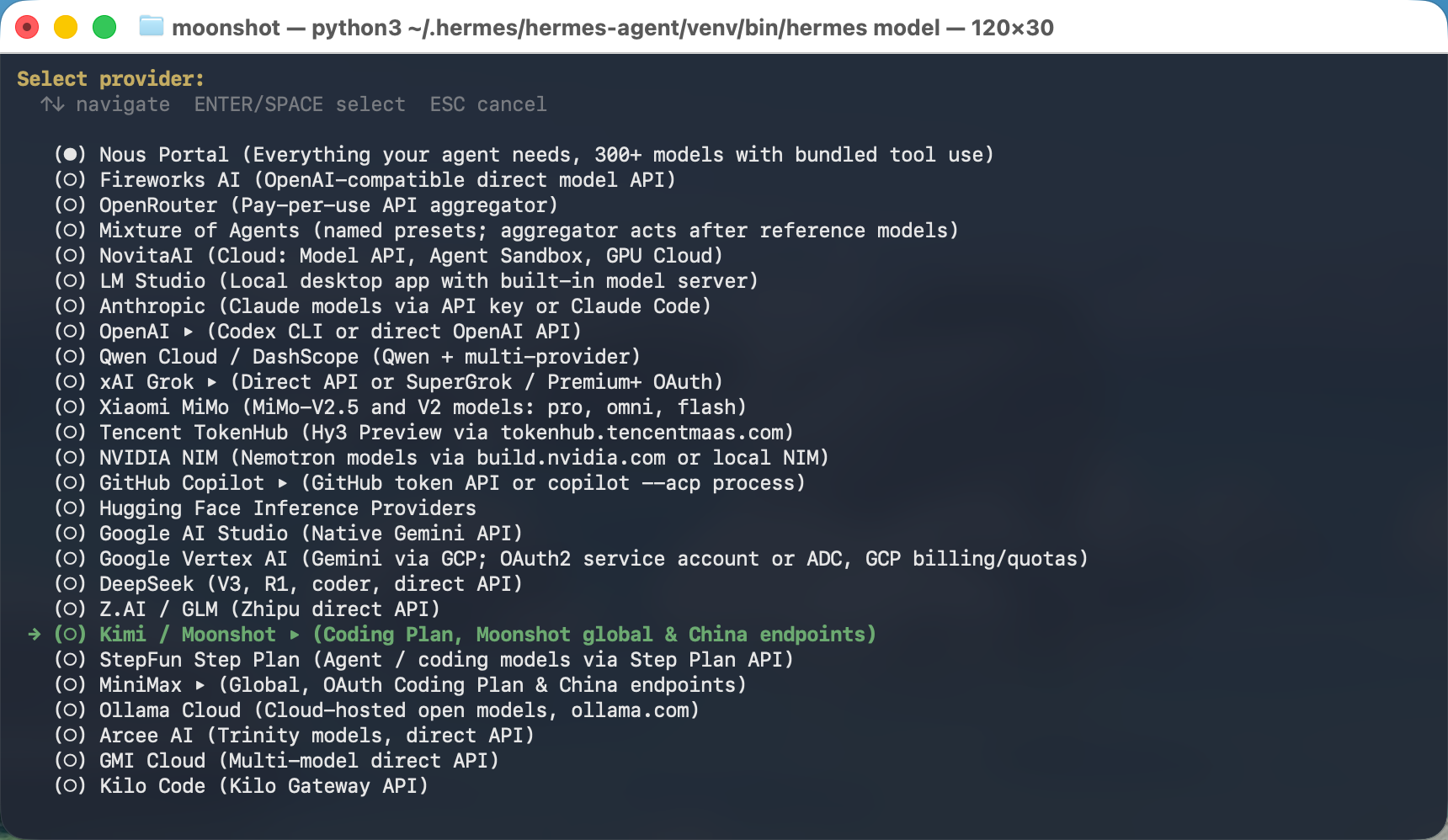
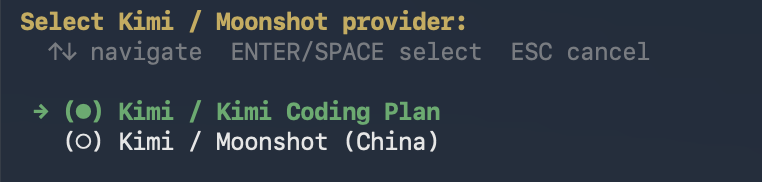
Select Kimi / Kimi Coding Plan in the submenu, then paste your membership API key into the masked input. Hermes detects the sk-kimi- prefix and automatically uses the Kimi Code endpoint (https://api.kimi.ai/coding) — no manual Base URL configuration needed.
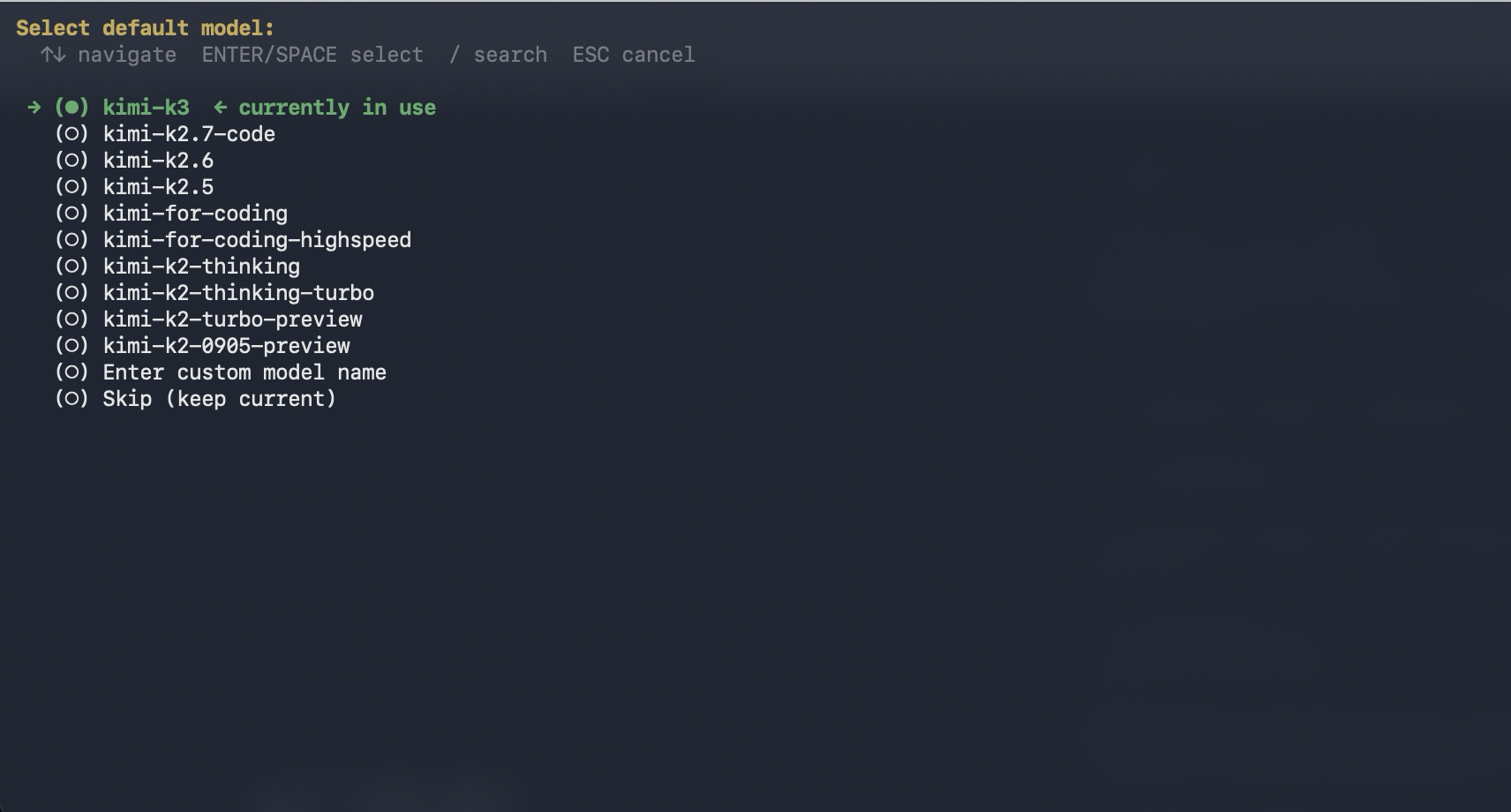
When picking the default model, the wizard lists the models available to your key:
Check your membership tier first, then pick a model from the table below — see Membership Benefits:
| Membership tier | Available models | Context window |
|---|---|---|
| Go (new plans) | No coding quota | — |
| Andante (legacy plans) | kimi-for-coding | 1048576 |
| Plus / Moderato | k3k3-256kkimi-for-coding | k3: 262144k3-256k: 262144kimi-for-coding: 1048576 |
| Pro and above / Allegretto and above | k3k3-256kkimi-for-codingkimi-for-coding-highspeed | k3: 1048576k3-256k: 262144kimi-for-coding: 1048576kimi-for-coding-highspeed: 262144 |
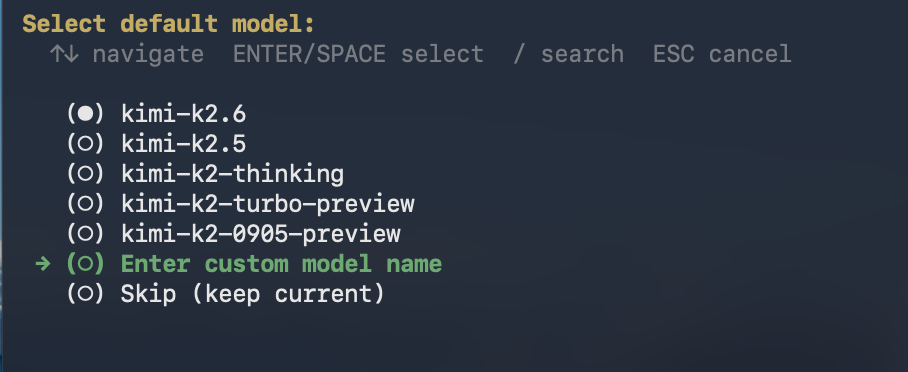
Using models or context windows beyond your tier's allowance will trigger an error. Note that k3-256k is not in the wizard's list — to use it, choose Enter custom model name and type k3-256k without any prefix.
Also, kimi-k3 in the wizard list and k3 in the config file are the same model — kimi- is only a display prefix in the wizard. When typing a model name manually or editing the config file, always use the ID without the prefix (k3, k3-256k).
New model recommendation
k3-256k is newly released: identical quality within a 256K context, while k3 (1M) costs about twice as much. It suits everyday Q&A, code completion, regular feature development, and single-file or few-file edits, and does not support video input. When switching from k3 (1M) to k3-256k, compact the context first.
Step 2: Write the complete K3 configuration
Run:
hermes config edit
hermes config editsimply opens~/.hermes/config.yamlin the default terminal editor. If you are not comfortable with nano/vim, you can open the same file in any editor you like, such as VS Code — the result is identical.
With the file open, merge the complete configuration below into it: the model and agent sections already exist — only change the fields shown (you can replace the whole model section outright); the custom_providers and auxiliary sections usually do not exist — paste them at the end of the file. Keep any other existing custom providers.
custom_providers:
  - name: kimi-coding-plan
    base_url: https://api.kimi.ai/coding/v1
    key_env: KIMI_API_KEY
    api_mode: chat_completions
    model: k3-256k
    extra_body:
      reasoning_effort: high
    models:
      k3-256k:
        context_length: 262144
        supports_vision: true

model:
  provider: custom:kimi-coding-plan
  default: k3-256k
  context_length: 262144
  supports_vision: true

agent:
  reasoning_effort: high

auxiliary:
  vision:
    provider: main
    model: k3-256k
    extra_body:
      reasoning_effort: high
Save and exit when done (nano: Ctrl+O then Enter to save, Ctrl+X to exit; vim: :wq; VS Code: just save the file).
What the key fields in the block do:
reasoning_effort: reasoning effort, explicitly set tohighhere. Acceptslow/high/max, defaulthigh— see the effort mapping table in Model configurationcontext_lengthandsupports_vision: enable the 256K context window and native image understanding; theauxiliarysection routes image analysis through the same main providerkey_env: the referencedKIMI_API_KEYis the membership key you pasted in Step 1 — no extra setup neededbase_url: only goes up to/coding/v1; Hermes appends/chat/completionsautomatically, so do not put the full request endpoint in
Note
To use the 1M-context k3 (available on Allegretto / Pro or above), replace every k3-256k in the configuration above with k3 and change both context_length values to 1048576. On Moderato / Plus, k3 is also capped at 256K, so no change is needed.
Step 3: Enable video analysis (optional)
Hermes Agent ships an official video analysis tool — enable it once:
hermes tools enable videoOnce enabled, Hermes can call the official video_analyze tool. For local videos, the tool reads the full file, encodes it as data:video/...;base64,..., and sends it to the model as a video_url content block — it does not extract frames locally with FFmpeg first.
Then, in a chat, provide the absolute video path and explicitly ask it to call video_analyze — no /video command needed:
Call video_analyze on /absolute/path/to/demo.mp4, summarize the video, and list three details that can be confirmed from the visuals.Common formats including MP4, WebM, MOV, AVI, MKV, and MPEG are supported, with an approximately 50 MB Base64-encoded payload limit — a hard-coded cap of the Hermes client video tool, not a Kimi API limit. Trim or compress larger videos first. You can also provide a directly accessible HTTP/HTTPS video URL.
Video analysis depends on the model's multimodal capability, and
k3-256kdoes not support video input. If you configuredk3-256kin Step 2, switch the default model tok3before analyzing videos.
Step 4: Use images (optional)
Reference a local image by its absolute path in a chat:
/image /absolute/path/to/example.pngYou can also copy an image to the clipboard, type /paste, and then ask your question. The image is sent as native vision content to the model configured in Step 2.
Step 5: Launch and verify
Start a new session so the provider and model settings take effect:
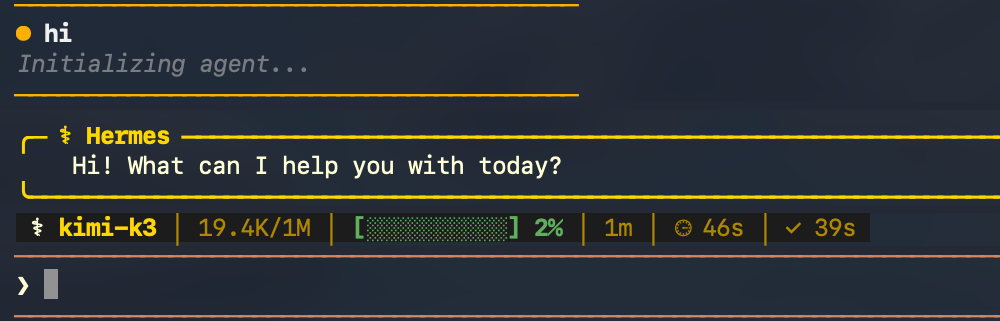
hermesAfter startup, confirm the status bar shows the expected model and context window (e.g. k3-256k with 256K), then send a simple request to verify connectivity.
Troubleshooting
k3-256k is missing from the model list
k3-256k is not in the wizard's default model list. Run hermes model again, select Kimi / Moonshot > Kimi / Kimi Coding Plan, then choose Enter custom model name and type k3-256k manually.
401 error or key rejected
Confirm you are using an sk-kimi- membership key created in the Kimi Code Console, and that your membership tier supports the selected model (see the tier table in Step 1). If the error persists, regenerate a key and run hermes model again.
403 error
You've hit a quota or rate limit. Note the rolling 5-hour rate window; for existing members on legacy plans, the subscription quota also refreshes every 7 days (new members are not subject to the weekly limit) — both recover automatically when their windows reset. You can check your quota usage in the Kimi Code Console. For the exact error messages and how to handle them, see the error reference.
The video tool is not called
Confirm you ran hermes tools enable video, explicitly asked for video_analyze in your prompt, and used an absolute local path. The encoded payload must stay below approximately 50 MB.
Next steps
- Model configuration — model capability comparison and the full effort mapping table
- Membership Benefits — available models, quota refresh rules, and tier requirements