Remote Control
Remote Control lets you continue working with a computer running Kimi Code Desktop from a phone, tablet, or another computer. After leaving your desk, you can still watch task progress, handle approvals, or send follow-up instructions. Project files, Shell commands, and local tools continue to run only on the computer where Desktop is running.
Remote Control is currently available only to membership tiers that include Kimi Code benefits.
Get started
Prerequisites
Before turning on Remote Control, make sure your computer meets the following conditions:
- Sign in and confirm access: Sign in to your Kimi account in Kimi Code Desktop and make sure the account has access to Remote Control
- Keep the computer online: Leave Kimi Code Desktop running, and keep the computer awake with a working network connection
- Use the same account: On your phone, tablet, or another computer, sign in with the same Kimi account used in Kimi Code Desktop
Step 1: Turn on Remote Control in Desktop
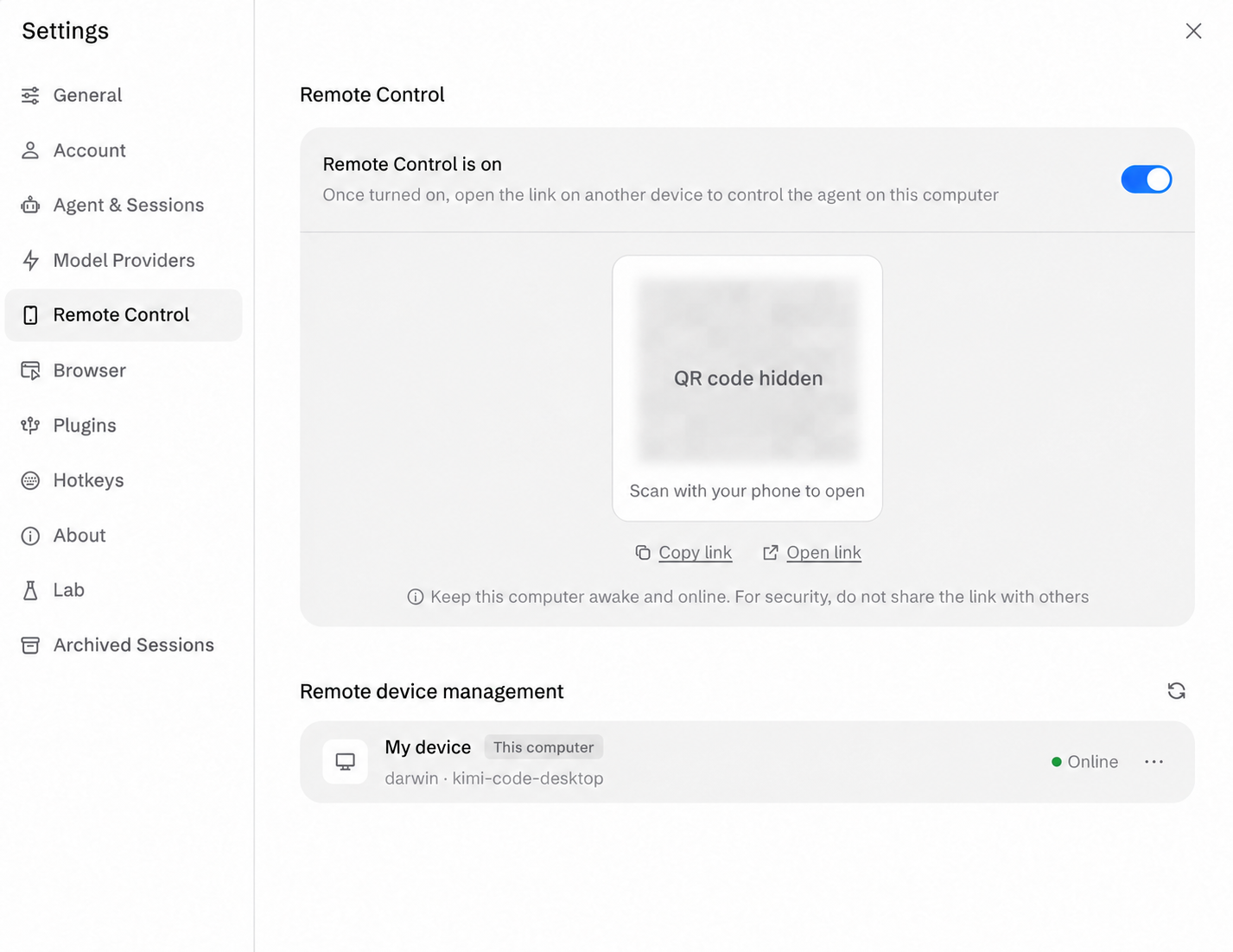
On your computer, go to Settings → Remote Control and turn on Remote Control. The page then displays a QR code and a link for accessing this computer. Keep Desktop running and the computer awake and connected to the network.
Step 2: Open the access link on another device
Scan the QR code with your phone, or copy the access link and open it in a browser on a phone, tablet, or another computer. The QR code and link are remote access entry points to this computer, so do not share them with anyone else.
Step 3: Sign in and turn on Remote Control
If the remote page is not signed in, sign in with the same Kimi account used in Desktop, then follow the page prompt to turn on Remote Control. Once connected, you can see the sessions on this computer.
Step 4: Continue or start a session
Open an existing session to watch its progress, handle approvals, or send follow-up instructions. You can also create a session and send a new task. All tasks continue to run on the computer where Desktop is running.
What you can do in a remote session
Remote sessions have essentially the same capabilities as local ones:
- Send new tasks: describe what you need; the task runs on the computer where Desktop is running
- Watch progress: execution steps and tools in use are shown in real time
- Continue the conversation: follow up on existing sessions
- Inspect tool calls: expand the input and output of each tool execution
- Handle approvals: approve or deny file edits, Shell execution, and other confirmation requests right from the remote page
- Interrupt or stop tasks: stop the running task at any time
- Check subagent / workflow status: track subagents or workflows dispatched by the task in the task panel
The remote device is only a control window. Project file access and edits, Shell commands, local MCP servers, and other local tools all run on the computer where Desktop is running.
Manage Remote Control
How to turn off Remote Control
When you no longer need remote access, turn off Remote Control in Desktop settings. You can also turn it off by quitting Desktop directly. To stop viewing temporarily, simply close the remote page; doing so does not stop a task that is still running on your computer.
Manage remote devices
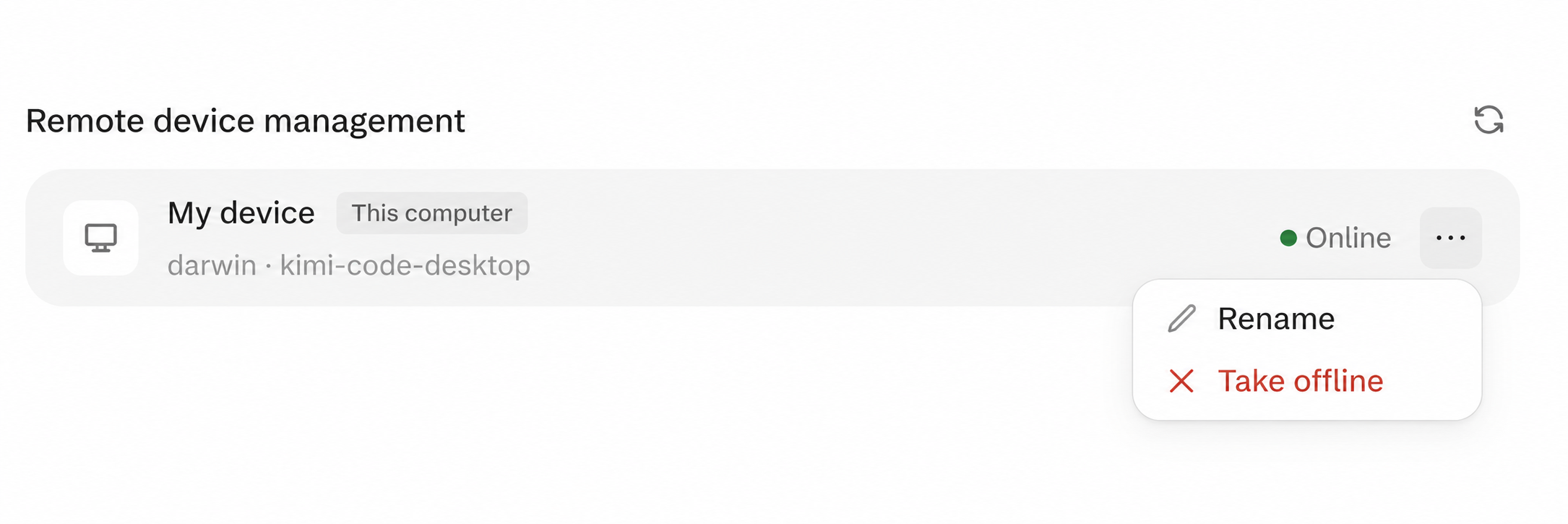
In the Remote device management list below Settings → Remote Control, you can check device status and use the menu on an individual device to rename it or take it offline.
Learn more
For details about Remote Control capability boundaries, connection recovery, security, and common questions, see Kimi Code CLI Remote Control.