Settings and Extensions
Manage your account, models, app options, and shortcuts in Settings, and extend the Agent's capabilities with plugins, Skills, MCP, and Hooks.
App settings
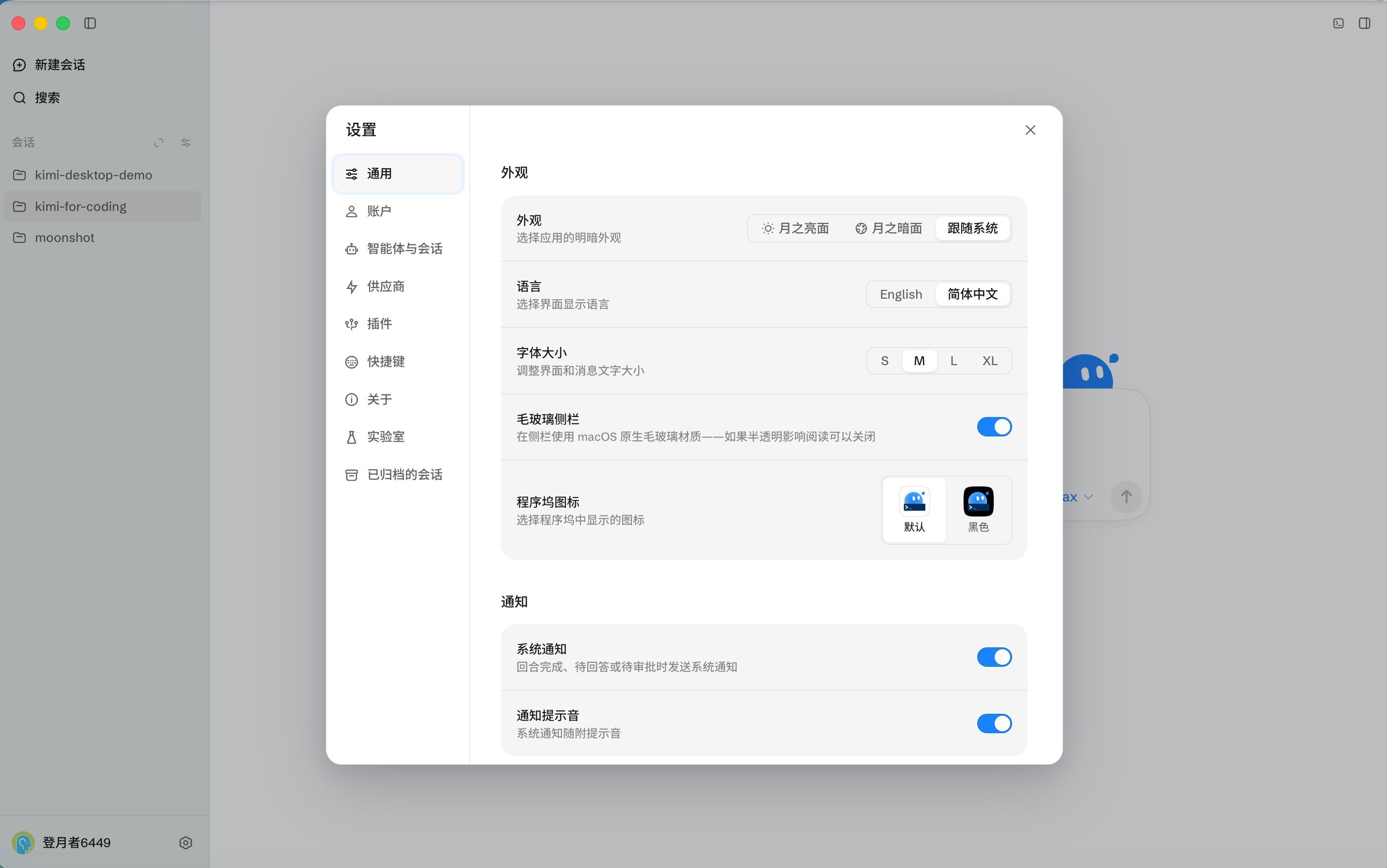
The Settings panel includes General, Account, Agent & Sessions, Model Providers, Plugins, Hotkeys, Browser, About, Lab, and Archived Sessions. It is used to manage appearance, account, models and providers, message folding, permissions, shortcuts, agreement links, and experimental options.
On first launch, choose the interface language and theme—you can adjust them later in Settings. The app checks for updates on launch, downloads new versions in the background, and installs them when prompted; you can also download the latest installer from the website at any time and install it over the current version. Check the current version in the About area of Settings.
Keyboard shortcuts
Default shortcuts
The table below lists the default shortcuts for macOS and Windows. You can change the default key combinations in the Hotkeys area of Settings; see "Custom shortcuts" below for the steps.
| Action | macOS | Windows |
|---|---|---|
| Open Settings | Cmd + , | Ctrl + , |
| New session | Cmd + N | Ctrl + N |
| Close current session tab | Cmd + W | Ctrl + W |
| Open folder | Cmd + O | Ctrl + O |
| Show or hide the terminal panel | Ctrl + ` | Ctrl + ` |
| Screenshot | Shift + Cmd + S | Shift + Ctrl + S |
Custom shortcuts
- Open Settings and go to the Hotkeys area.
- Click the edit icon to the right of the action you want to change.
- Press the new key combination.
The global summon shortcut brings Kimi Code Desktop forward while you are using other apps. It is unbound by default; follow the steps above to assign a key combination to "Global summon".
Plugins
Plugins bring specific tools, workflows, or external services into the desktop app. In the Plugins area of Settings, you can browse the plugin marketplace, install, enable, update, or remove plugins, and add custom plugin sources.
The official extensions currently available include:
- Kimi Computer Use: lets the Agent operate apps and interfaces on your Mac.
- Kimi WebBridge: lets the Agent drive your real browser and reuse your existing sign-in state. If the browser extension is missing, the Plugins area provides an install entry for the Chrome or Edge extension. To verify pages inside the app, use the Built-in Browser in the right panel; use WebBridge when you need your real browser's sign-in state.
- Kimi Datasource: gives the Agent data-query and datasource-related capabilities, suitable for tasks that query external data or connect to a datasource.
For how to add plugins, the plugin marketplace, and custom sources, see Plugins.
Skills
A Skill is a Markdown file that describes domain knowledge or a workflow, so things like project code conventions or review processes can be saved and reused.
In the desktop app, you can simply ask the Agent in a session to create a Skill for you—for example, "save our team's PR review process as a Skill"—and the Agent will generate the corresponding Skill file. Once created, type / at the beginning of the Composer and pick the Skill's command, or type /skill: followed by the Skill name directly:
/skill:review-pr #1234The model can also invoke a Skill automatically when its description and whenToUse match the situation. Skills use the same file format, storage locations, and priority rules as the CLI—see Agent Skills.
MCP
The desktop app uses the same MCP configuration as the CLI: MCP servers are defined in mcp.json—the user-level ~/.kimi-code/mcp.json (shared across projects) and the project-level .kimi-code/mcp.json (applies only to the current project). After saving, newly created sessions can use the tools provided by that server; sessions that are already open are not affected. The [mcp] section of config.toml only adjusts global defaults such as timeouts.
For MCP server configuration fields, tool permissions, and security notes, see Model Context Protocol.
Hooks
Hooks run local scripts at key moments such as before and after tool calls or when a session starts—for example, to check or block dangerous commands automatically. Rules configured in the [[hooks]] array of ~/.kimi-code/config.toml also apply to the desktop app.
For the list of hook events, configuration fields, and examples, see Hooks.
Share configuration with the CLI
Desktop and the CLI can be installed on the same machine and share some local configuration, such as account, model, provider, and plugin-related settings. Refer to each product's settings and configuration files for the exact shared scope.
Local data locations
The desktop app stores local data in the following places:
| Content | Location |
|---|---|
| Configuration, account credentials, sessions, and logs (shared with the CLI) | ~/.kimi-code/ |
| UI state and other app data | macOS: ~/Library/Application Support/kimi-code-app/Windows: %APPDATA%\kimi-code-app\ |
| Update download cache | macOS: ~/Library/Caches/kimi-code-app-updater/Windows: %LOCALAPPDATA%\kimi-code-app-updater\ |