Interface Tour
The desktop app's main window is organized into areas: workspaces and the session list on the left, the conversation and Composer in the middle, supporting panels on the right, and a terminal that opens at the bottom. This page covers where each area is and what it is for; for detailed operations, see the corresponding guides.
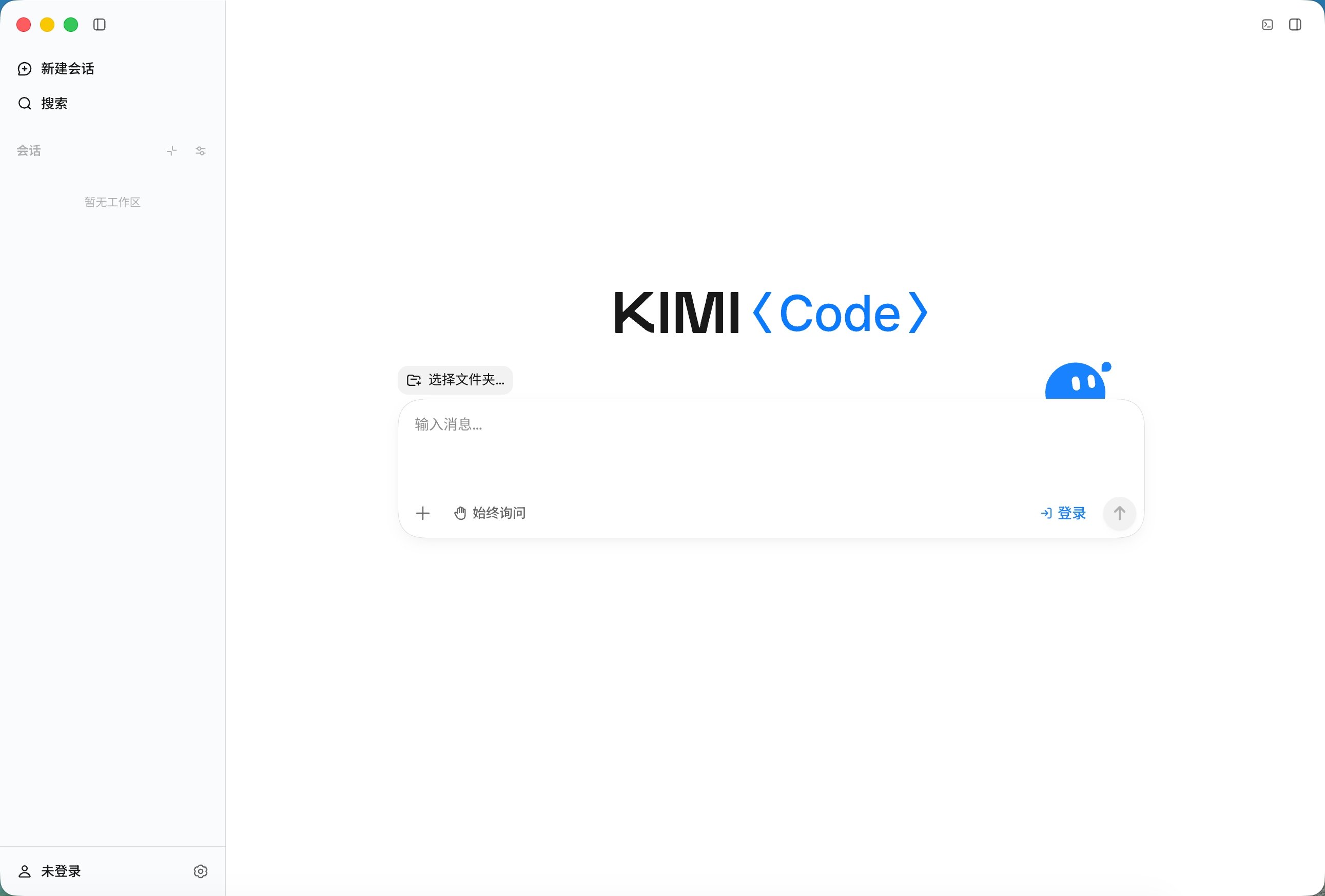
Main areas
- Left sidebar: organizes sessions by workspace, with entries for creating sessions, searching, and archived sessions. You can also drop a folder from Finder or File Explorer onto the sidebar to add it as a workspace. For how to manage workspaces and sessions, see Project and Session Management.
- Conversation area and Composer: the middle area shows the conversation and tool execution, keeping the Agent's tool calls, execution progress, and code changes visible at all times. Above the Composer are the workspace picker and the background-task work bar. Inside the Composer you can switch models; the + button in the lower-left corner provides task modes, attachments, and screenshot capture, and typing
@or/references files or invokes commands. File paths mentioned in the chat can be clicked to open directly in File Preview. For details, see Input and Context and Task Execution and Review. - Top bar: gathers the current session's title, ways to open the project in external apps, the right panel's tabs, the terminal toggle, and the panel toggle. See Top bar.
- Right panel: organizes supporting views as tabs that stay with the session. See Right panel.
- Bottom terminal panel: the desktop app's native terminal, with support for multiple tabs. For how to open it and run checks, see Built-in terminal.
- Settings: manages General, Account, Agent & Sessions, Model Providers, Plugins, Hotkeys, and other options. See Settings and Extensions.
Top bar
The bar at the top of the session view gathers the current session's common entries:
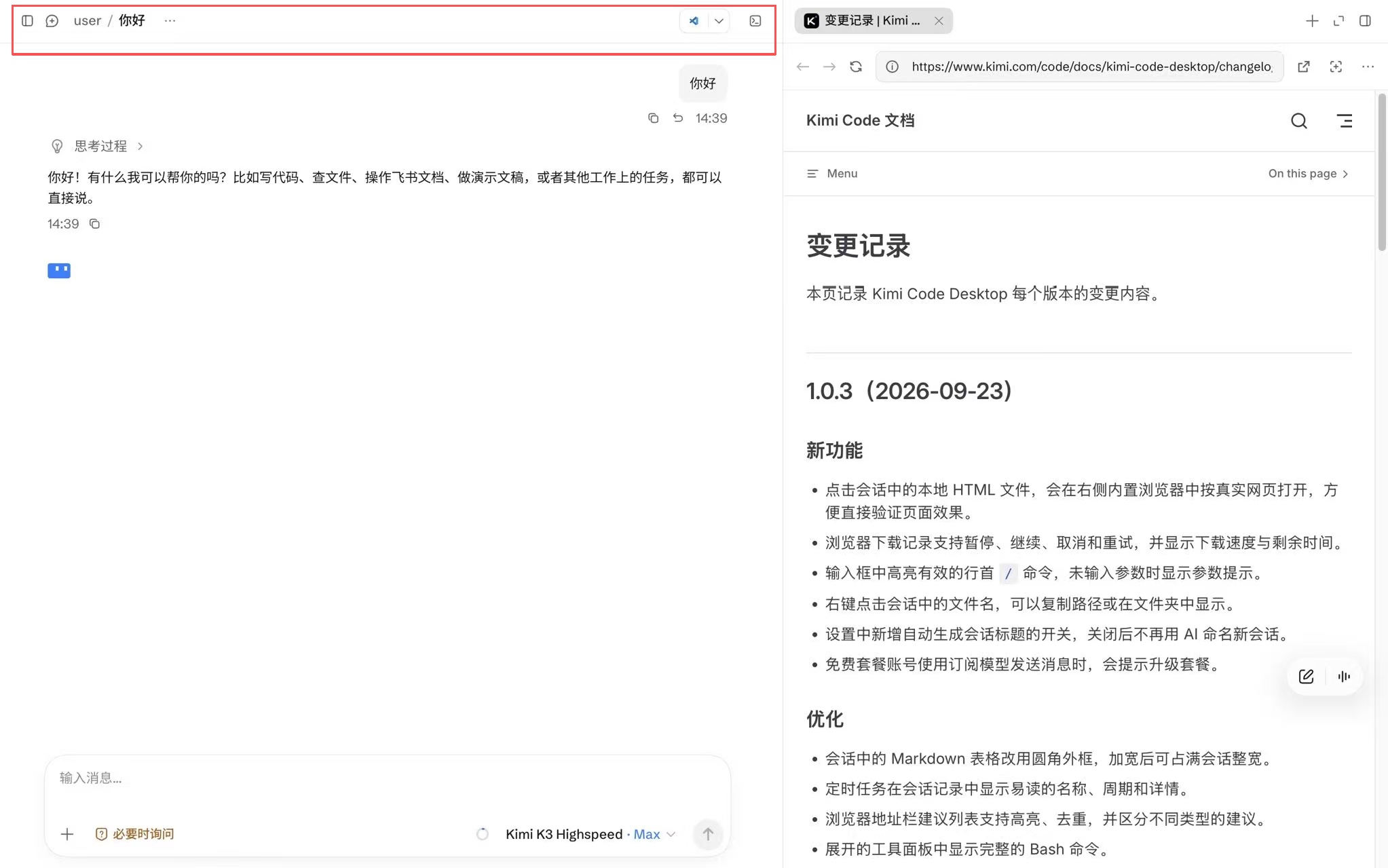
- Session title: generated by AI after the first turn; use the More menu on its right to perform session actions.
- External apps: open the current project or file in an external app—you can choose VS Code, Cursor, Zed, Xcode, the system terminal, or a file manager such as Finder or File Explorer, and you can also copy the current path. See Open in external apps.
- Panel tabs: tabs opened in the right panel (such as Changes and this turn's changes) appear here and can be switched or closed; + opens a new tab.
- Show or hide the panel: the rightmost button collapses or expands the right panel.
- Open terminal: the "Open Terminal" button in the upper-right corner of the session shows or hides the bottom terminal panel. See Built-in terminal.
Right panel
The right panel organizes supporting views as tabs that stay with the session. What each view does:
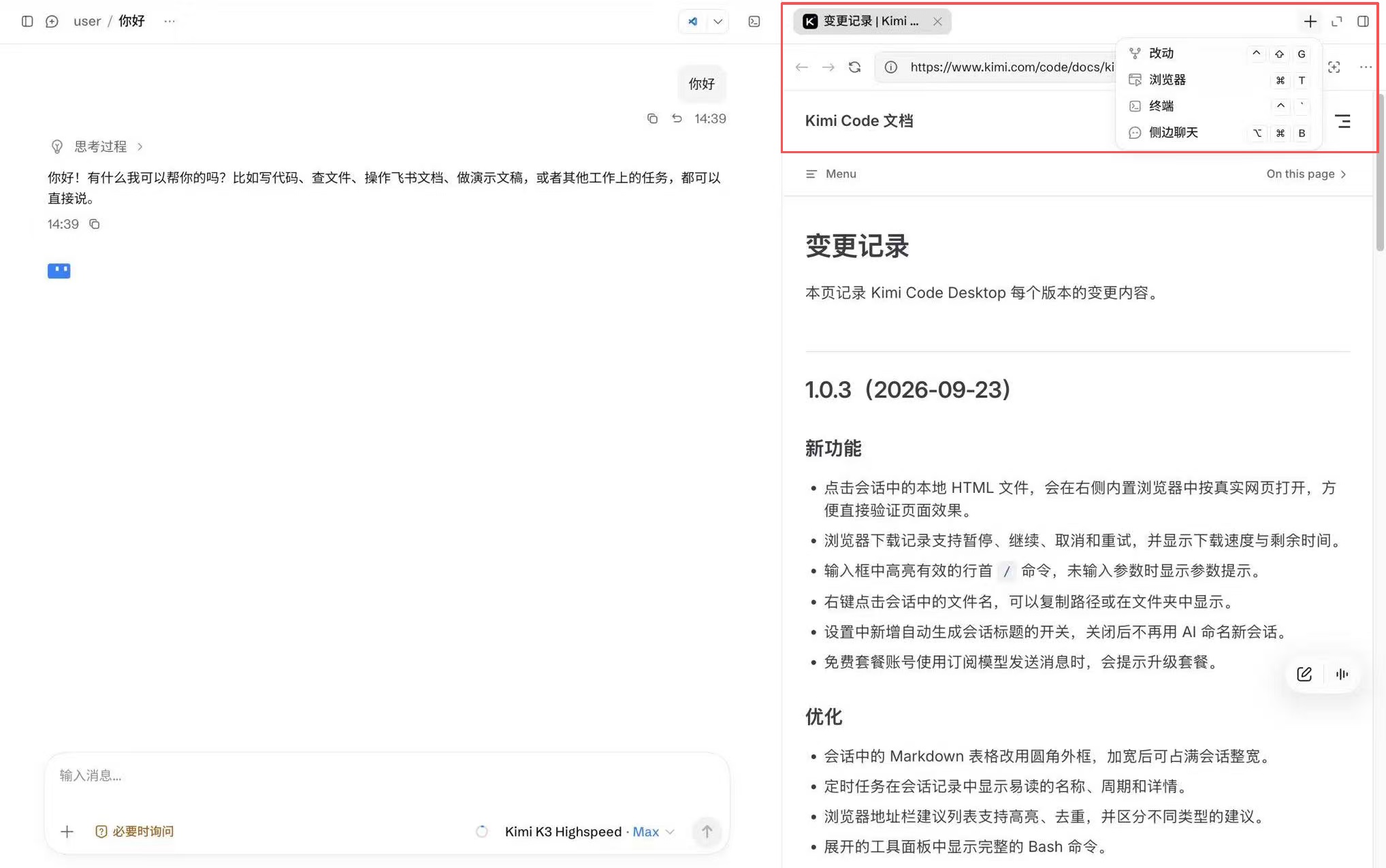
- Changes: review changes in a file list or tree view, including individual files or individual edits. Each session can have one Changes tab open at a time; if it is already open, switch to it directly—the new-tab menu does not show the entry again.
- File Preview: preview Markdown, JSON, HTML, PDF, CSV, images, and code or text files. See File Preview.
- Built-in terminal and browser: run the project, inspect command output, and verify web pages within the app. The terminal can also open in the bottom panel—see Built-in terminal; for the full browser guide, see Built-in Browser.
- Thinking and compaction: view the displayed reasoning and information about context compaction.
- Agent / Subagent: view the status and output of the current Agent or subagent.
- Side chat: create a read-only temporary conversation based on the main session's context, to discuss other questions without affecting the main session. See Side chat.