不回消息或回复缓慢
Kimi Claw 不回复消息或响应缓慢可能有多种原因,请按以下路径逐步排查。
常见原因
- Bridge 断开:Kimi Claw 与服务端的连接中断,需要重启 Gateway。
- 资源繁忙:服务端负载较高,请稍后重试。
- 实例离线:Kimi Claw 实例已离线,需要在设置中修复。
检查 Kimi Claw 是否离线
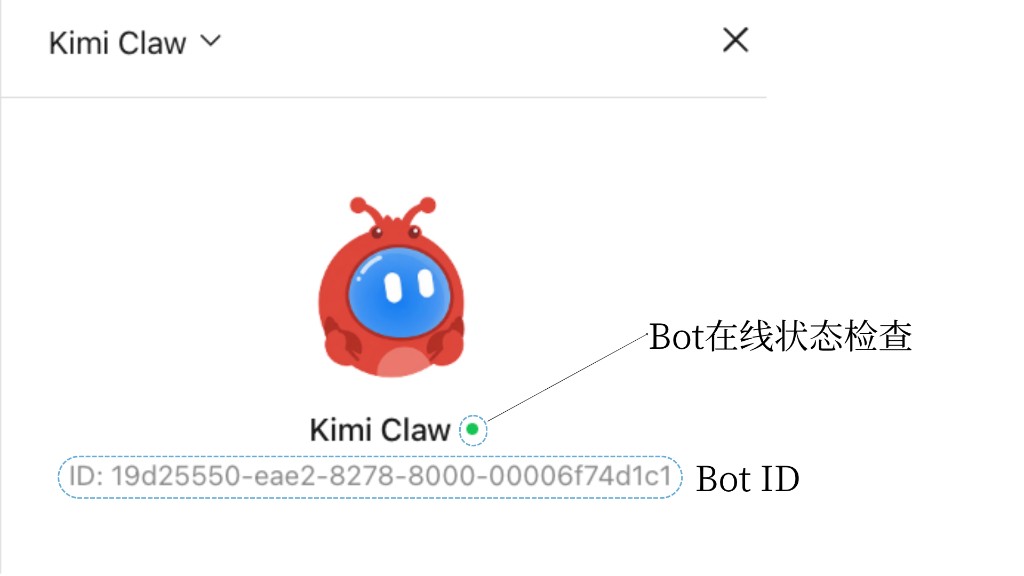
点开设置页,头像下方会显示 Bot ID 与在线状态:🟢 绿点为在线,🔴 红点为离线。如果显示离线,请按下方修复路径进行排查。
完整修复路径
请按以下顺序逐步尝试,直到问题解决:
- 再发一条消息:有时只是临时延迟,再发一条消息可能触发回复。
- 刷新页面:关闭并重新打开 Kimi Claw 对话页面。
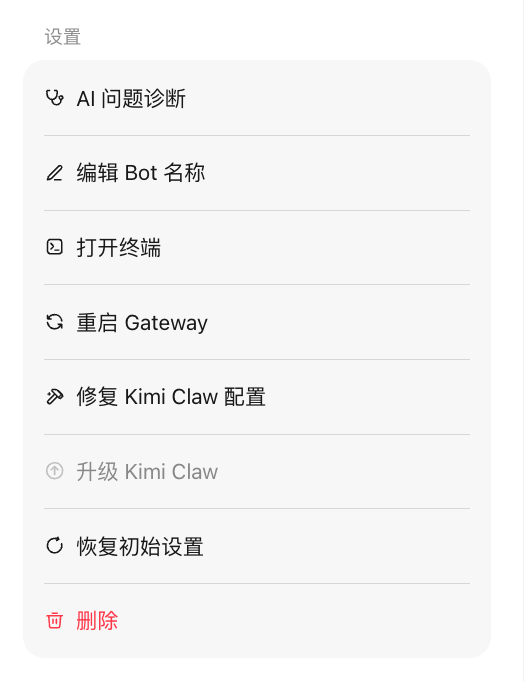
- 重启 Gateway:进入 设置,点击 重启 Kimi Claw,等待重启完成。
- 修复 Kimi Claw 配置:在设置内点击「修复 Kimi Claw 配置」,系统会自动检测并修复配置问题。
- 恢复初始设置:如果以上方式均无效,可以在设置中选择「恢复初始设置」。
关于恢复初始设置
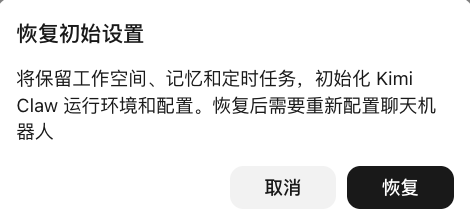
恢复初始设置会将 Kimi Claw 重置到初始状态,但:
- ✅ 会保留:工作空间中的文件、长期记忆(Memory)和定时任务
- ❌ 需要重新配置:聊天机器人(微信、飞书、企业微信等)需要重新进行连接配置
AI 问题诊断
如果以上方式仍无法解决,可以通过以下两种方式让 AI 自行诊断:
方法一:在对话中发送 /status 查看系统状态,或发送 /logs 查看最近日志,帮助定位具体原因。
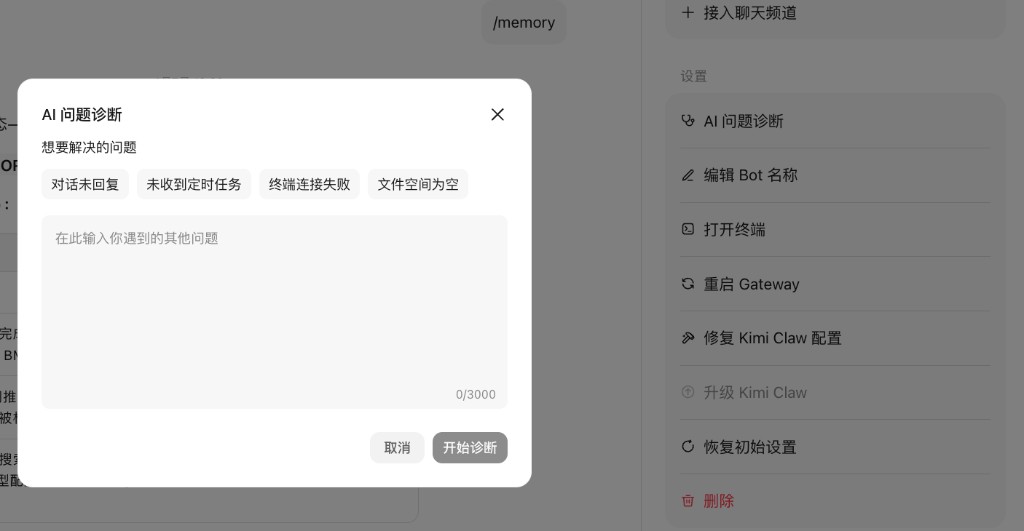
方法二:点击 Kimi Claw 页面「设置」→「AI 问题诊断」,输入遇到的问题,带上 logs 日志与报错信息,让 AI 自行诊断与修复。
本文是否对你有帮助